
Reverse Image Search Android: Complete Guide for All Devices
Master every method to harness your Android device's powerful visual search capabilities, from Google Lens to specialized tracking tools.
Your Android device contains powerful reverse image search capabilities that most people never discover. Reverse image search transforms your Android phone into an intelligent visual search tool that can identify objects, find similar images online, verify image sources, and locate visually related content across the internet. Whether you're shopping, researching, or fact-checking, Android provides multiple reverse image search solutions through Google Lens, Google Images, and specialized image search tools that make visual search accessible to everyone. iPhone users can access similar powerful reverse image search capabilities through Google reverse image search on iPhone, which offers comparable functionality tailored to iOS devices.
Reverse Image Search Android: Complete Guide for All Devices
This comprehensive guide explores every practical reverse image search method for Android devices, from Google's integrated image search solutions to specialized third-party tools. You'll learn which reverse image search approach works best for different scenarios, how to use Google Lens for instant image search on Android, and how to find similar images using Google Images. By the end, you'll understand exactly how to leverage your Android device's reverse image search capabilities for shopping, research, verification, and discovery.
Google Lens for Android
Google Lens represents the most sophisticated reverse image search solution available for Android. This powerful visual search tool transforms your camera into an intelligent visual search engine capable of identifying objects, providing shopping recommendations, and discovering contextual information about anything you photograph. The software integrates seamlessly with Android, making reverse image search accessible directly from your Google app, camera, or Photos.
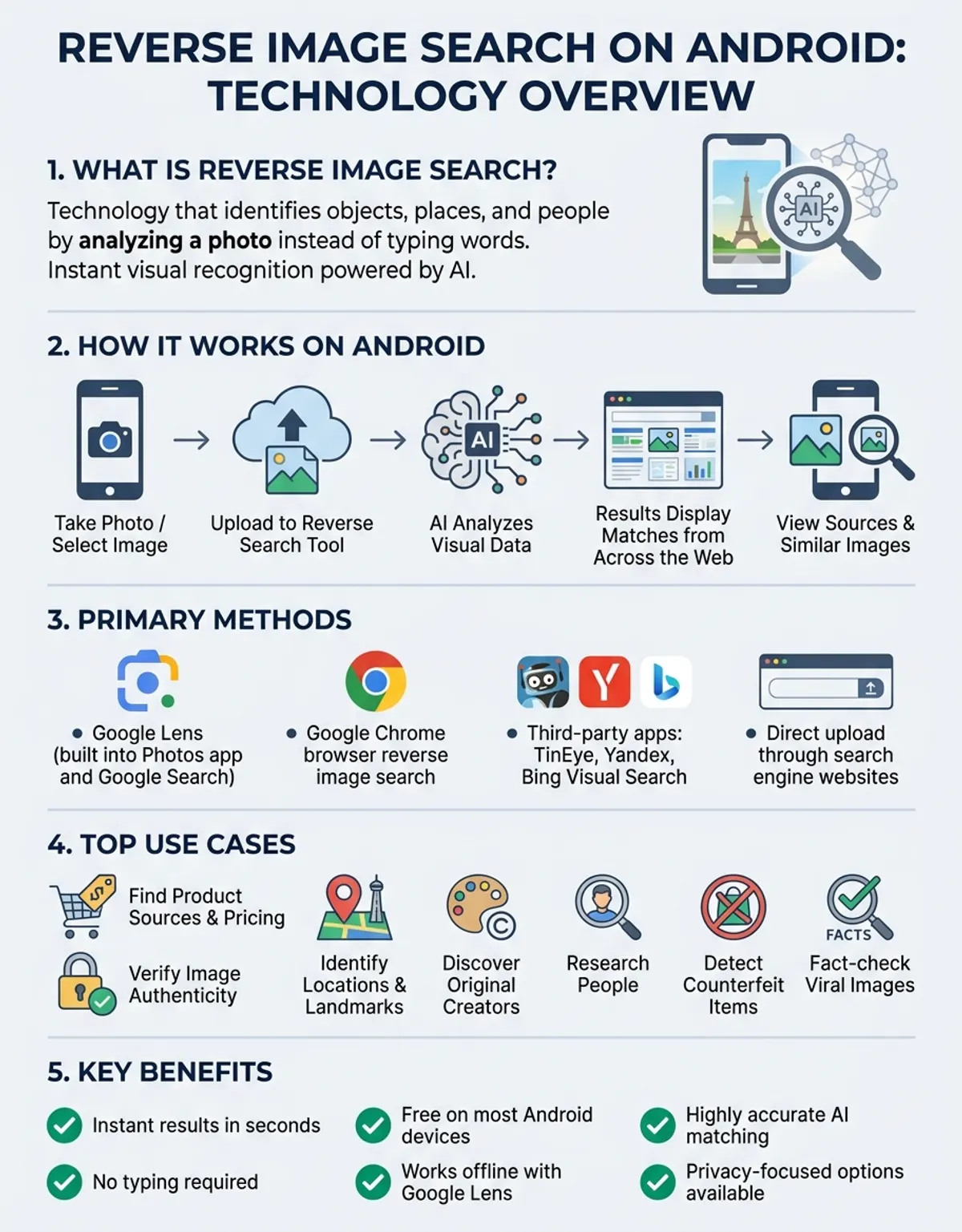
Accessing this tool varies slightly depending on your device manufacturer and Android version. On most recent Android installations, open the Google app and tap the camera icon adjacent to the search field. This launches the Lens interface, where you can either point your camera at a physical object or select an existing photo from your device gallery. The system analyzes the visual content instantly, identifying objects, extracting text, suggesting products, and providing contextual search results based on what appears in the frame.
The Photos app integration offers another convenient access point. Open any image stored in Photos and tap the Lens button at the bottom of the screen. This method excels when you've already captured something interesting and want to investigate further without switching apps. The tool will highlight identifiable elements within the photo, allowing you to tap specific objects for targeted information rather than analyzing the entire image at once.
For immediate reverse image searches without saving photos, the camera app integration provides the fastest workflow. Many Android devices include a dedicated Lens mode accessible directly from the camera interface. Switch to this mode and point your camera at anything you want to investigate—the system processes the visual information in real-time without requiring you to capture or store the image. This approach works particularly well for translating foreign text, identifying plants and animals, or quickly looking up product information while shopping in physical stores.
The accuracy and versatility of this visual search technology stem from its connection to Google's massive visual database and sophisticated machine learning algorithms. The system doesn't just match pixel patterns—it understands context, identifies specific objects, reads text regardless of font or orientation, and provides relevant information tailored to what you're viewing. This contextual awareness makes it significantly more useful than simple visual matching for everyday reverse image search tasks on Android.
Using Google Images on Android
The traditional Google Images website offers an alternative reverse image search approach that complements the Lens experience. While less integrated into the Android ecosystem, the browser-based method provides greater control over search parameters and works well when you need to search using image URLs or want more detailed filtering options than the Lens interface provides.
To access reverse image search through Google Images on your Android device, open Chrome or your preferred browser and navigate to images.google.com. The mobile version typically displays a simplified interface, so tap the three-dot menu and enable "Desktop site" to access the full feature set. Once the desktop version loads, you'll see a camera icon in the search bar—tap this to reveal options for uploading images directly from your device or searching using an image URL.
When uploading from your device, select "Upload an image" and choose a photo from your gallery. Google processes the file and returns results showing visually matching images, pages where the image appears, and different sizes of the same image available across the web. This method excels at helping you discover original sources for images you've encountered elsewhere, identify where specific photos have been published, and locate higher-resolution versions of compressed or downsized images.
The URL search option proves valuable when you encounter images while browsing and want to investigate without downloading them first. Copy the image address from any webpage, return to Google Images in desktop mode, tap the camera icon, select "Paste image URL," and insert the copied address. Google fetches and analyzes the image from its source location, providing the same comprehensive results as uploaded file searches.
Chrome's built-in integration offers a more streamlined workflow for images encountered while browsing. When viewing any image in Chrome on Android, long-press the image and select "Search Google for this image" from the context menu. This shortcut bypasses the need to visit images.google.com manually and provides instant reverse image search results without interrupting your browsing session. The feature works seamlessly across most websites and delivers identical results to the manual upload method.
Best Free Tools for Android
While Google's integrated solutions handle most reverse image search scenarios effectively, specialized tools offer unique capabilities that extend beyond Google's general-purpose approach. Understanding the strengths of different platforms helps you choose the optimal tool for specific use cases, whether you're tracking image usage, researching product alternatives, or conducting detailed visual analysis.
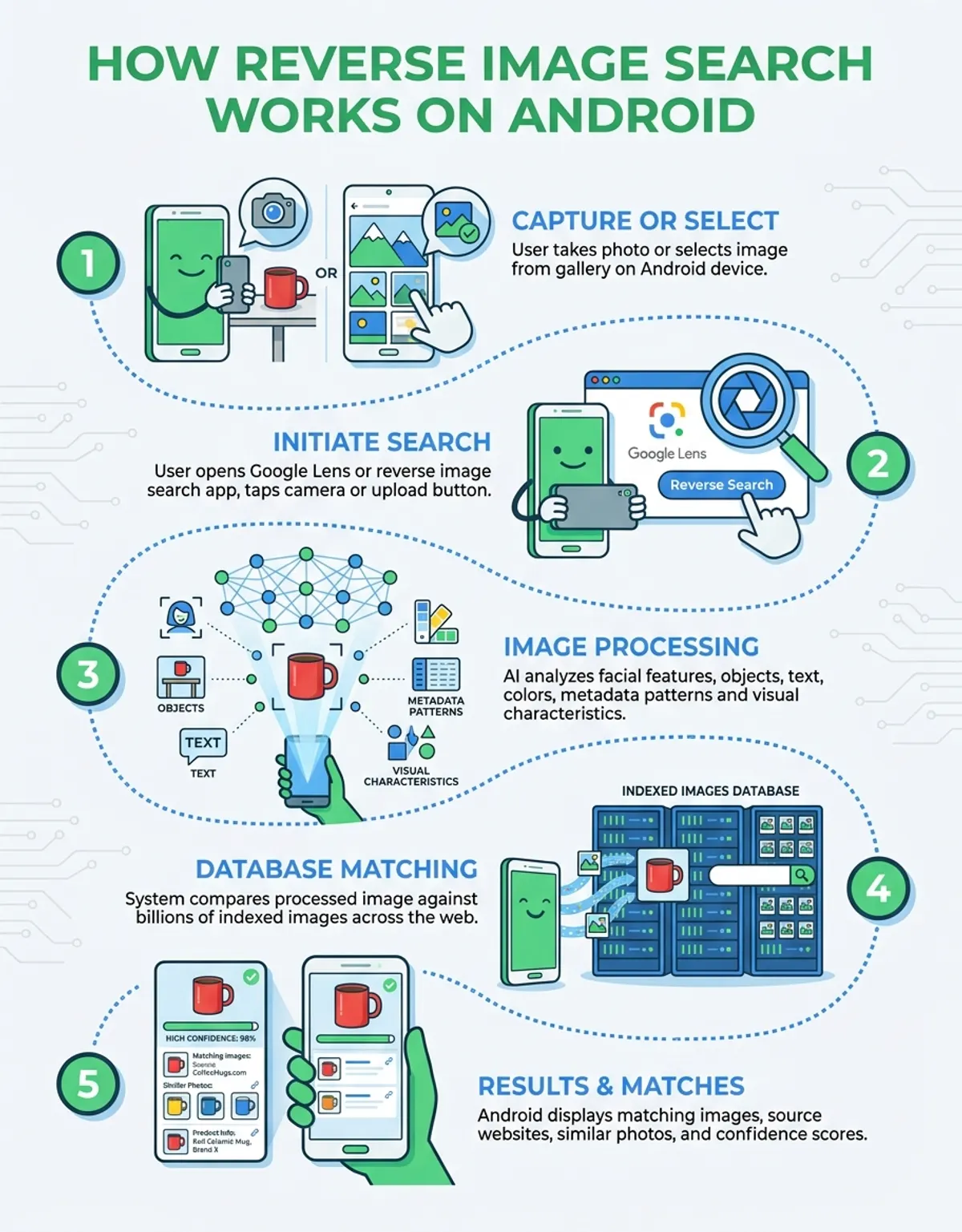
| Tool | Platform | Free? | Best For | Accuracy |
|---|---|---|---|---|
| Google Lens | Android (native) | Yes | Real-time object identification, shopping, text extraction | Excellent |
| Google Images | Browser | Yes | Source tracking, exact match discovery | Excellent |
| TinEye | Browser | Yes | Copyright research, publication history | Very Good |
| Bing Visual Search | Browser | Yes | Shopping comparison, product discovery | Good |
| CaraComp | Browser/App | Yes | AI-powered facial analysis, detailed similarity comparison | Excellent |
| Yandex Images | Browser | Yes | International content, non-English sources | Good |
Each platform employs different algorithms and indexes distinct portions of the web, which explains why searching the same image across multiple services occasionally yields complementary results.
Each platform employs different algorithms and indexes distinct portions of the web, which explains why searching the same image across multiple services occasionally yields complementary results. Google's tools leverage Google's vast crawl data and machine learning infrastructure, providing exceptional accuracy for mainstream content. The integration with Android makes these Google offerings the natural first choice for most reverse image search tasks.
One specialized service distinguishes itself through chronological tracking capabilities. Rather than focusing on visual similarity, it maintains a chronological index showing where specific images have appeared across time. Photographers, journalists, and content creators value this historical perspective when researching image origins, tracking unauthorized usage, or verifying the authenticity of viral photos. The basic service operates entirely through the browser without requiring app installation.
CaraComp targets users requiring sophisticated visual comparison beyond standard reverse image search. The platform's AI algorithms excel at facial analysis, detailed similarity scoring, and nuanced visual comparison that general-purpose tools don't provide. When you need to analyze subtle differences between images or conduct professional-grade visual comparison work, CaraComp's specialized features deliver capabilities that complement rather than replace traditional reverse image search.
Samsung Galaxy Reverse Image Search Features
Samsung equips its Galaxy lineup with proprietary reverse image search capabilities that supplement the standard Android experience. These manufacturer-specific features provide additional access points and unique interaction methods unavailable on devices from other manufacturers, making visual search even more convenient for Galaxy owners.
Circle to Search, introduced on flagship Galaxy models beginning with the S24 series, revolutionizes how users initiate visual searches. Rather than opening specific apps or pointing cameras, users can search anything visible on their screen by holding the navigation bar or home button, then circling, highlighting, or tapping the content they want to investigate. This system-wide integration means you can perform reverse image search on photos in messaging apps, social media content, website images, or any visual content displayed on your screen without switching contexts or saving files.
Circle to Search revolutionizes how users initiate visual searches—search anything visible on your screen without switching contexts or saving files.
The feature works seamlessly across Android 14 and newer versions on compatible Galaxy devices. When you activate Circle to Search and select an image area, the system analyzes the visual content and displays results in an overlay panel that doesn't interrupt your current activity. You can review search results, explore related information, and return to your previous task without the disruptive app-switching that traditional reverse image search methods require.
Older Galaxy models feature Bixby Vision, the predecessor to Circle to Search. While less elegant than the newer implementation, Bixby Vision still provides functional reverse image search capabilities accessible through the camera app or Bixby button. The technology handles product identification, QR code scanning, text translation, and visual search reasonably well, though most users discover Google's solutions deliver superior results with better integration. The manufacturer has gradually transitioned away from Bixby Vision in favor of Google's solutions and its own Circle to Search innovation.
Step-by-Step Reverse Image Search on Android
Universal methods work across all Android devices regardless of manufacturer, model, or custom interface modifications. These approaches rely on standard Google services available on virtually every Android installation, ensuring consistent functionality whether you're using a budget device or flagship model from any brand.
Method 1: Google App Camera Icon
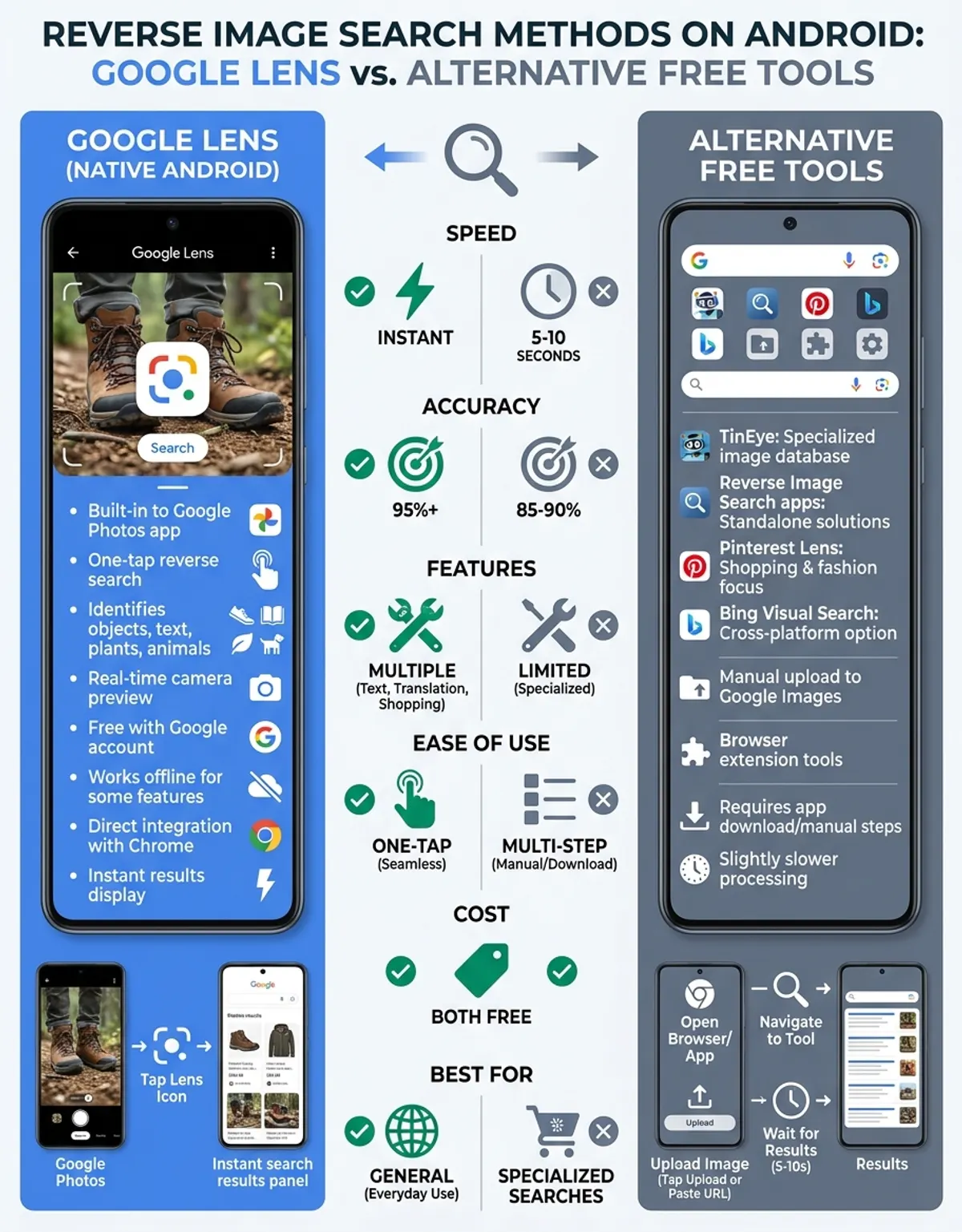
Launch the Google app (pre-installed on nearly all Android devices) and locate the camera icon in the search field at the screen's top. Tapping this icon activates the Lens interface. You can either point your camera at physical objects for real-time analysis or tap the gallery icon to select previously captured photos. The system processes visual information instantly, displaying identified objects, extracted text, shopping recommendations, and related search results tailored to the image content.
Method 2: Browser Desktop Mode Upload
Open your preferred mobile browser and navigate to images.google.com. Access the browser menu (typically three dots) and enable "Desktop site" mode to display the full interface. The desktop version includes a camera icon in the search field—tap this to access upload options. Select "Upload an image" to choose a file from your device gallery, or "Paste image URL" if you have a direct link to an image hosted elsewhere. Google analyzes the uploaded content and returns comprehensive results showing visual matches, source pages, and related images.
Method 3: Long-Press Context Menu
When browsing websites in Chrome or most Chromium-based browsers, you can initiate reverse image search directly from any displayed image. Long-press the image you want to investigate until a context menu appears. Select "Search Google for this image" (wording varies slightly between browser versions) to immediately execute a reverse image search without uploading files or visiting Google Images manually. Results open in a new tab, showing matching images and source information.
Method 4: Photos Integration
If you use Photos to manage your image library, the app provides seamless Lens integration. Open any photo in your collection and tap the Lens icon (typically located at the bottom of the screen). The system analyzes the photo and highlights identifiable elements—tap any highlighted region to receive targeted information about that specific object or area rather than searching the entire image.
These methods ensure that every Android user can access reverse image search functionality through multiple pathways. While newer devices with enhanced Lens integration offer more streamlined interfaces, the fundamental capabilities remain available across the entire Android ecosystem through these universal approaches.
Finding Similar Photos
Beyond identifying specific images or objects, reverse image search excels at discovering visually related content that shares aesthetic qualities, subject matter, or compositional elements with your query image. This capability supports diverse applications from creative inspiration to comprehensive research workflows that extend beyond simple identification tasks.
When you perform a reverse image search, results typically include a "visually related images" section displaying content that shares visual characteristics with your query but isn't necessarily identical. These related results might show different angles of the same landmark, alternative color variants of a product, images featuring related subject matter, or photos with comparable composition and aesthetics. This discovery function transforms reverse image search from a mere identification tool into a powerful exploratory research mechanism.
This discovery function transforms reverse image search from a mere identification tool into a powerful exploratory research mechanism.
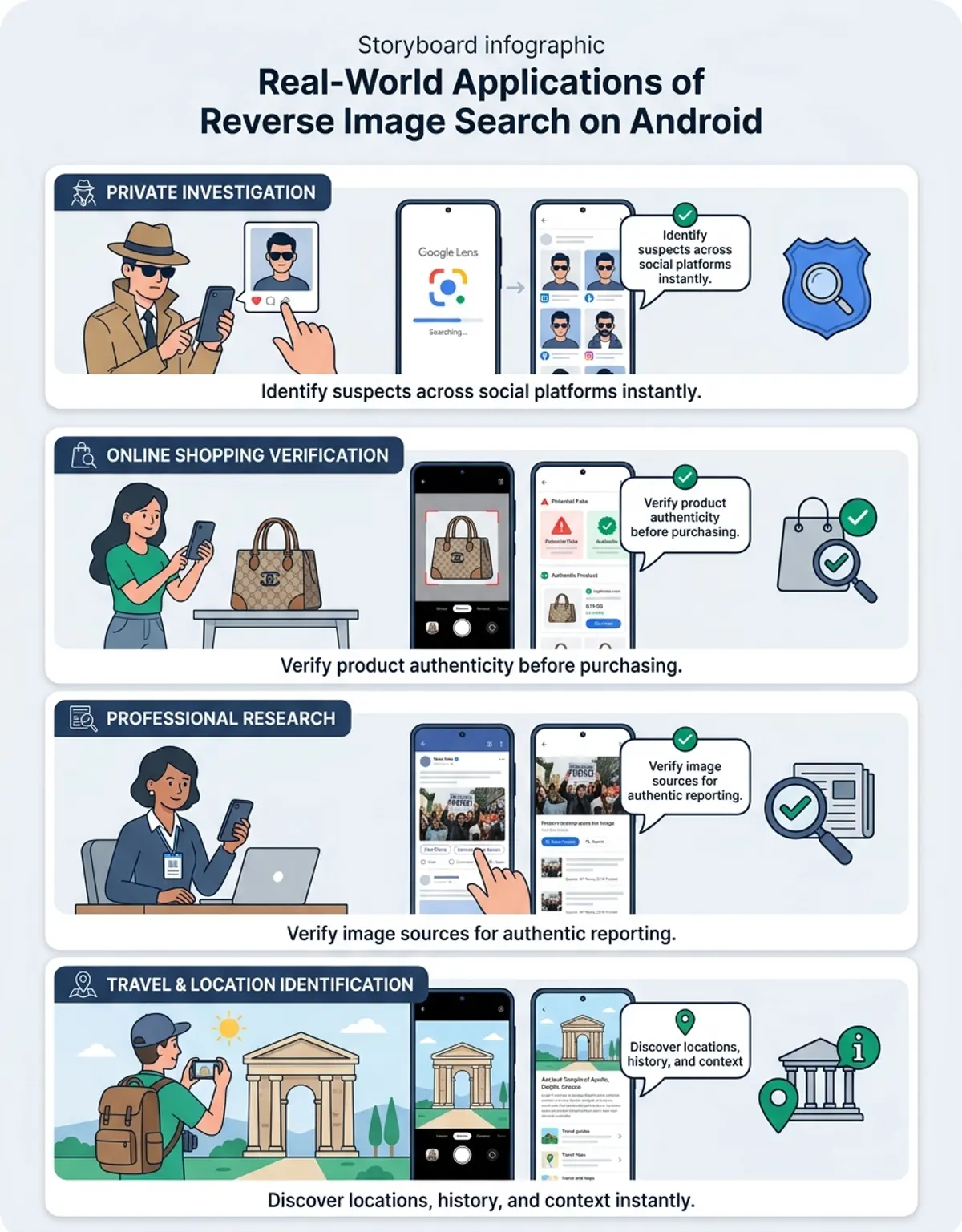
E-commerce applications particularly benefit from visual similarity matching. Photograph any product—clothing, furniture, accessories, electronics—and reverse image search will surface alternative options from different retailers, price comparisons, and variations in color, style, or features. This shopping research capability helps you compare options, discover alternatives you might not have considered, and make informed purchasing decisions without knowing specific product names or manufacturer details.
Content creators and designers leverage visual similarity search for research and inspiration. Upload an image representing a desired aesthetic, composition style, or subject approach, and the search returns hundreds of visually comparable examples. This research method helps you understand how others have approached related subjects, discover new perspectives on familiar themes, and build comprehensive visual reference libraries without manual keyword searching that might miss relevant content using different terminology.
Copyright verification represents another critical application. Photographers, artists, and content creators can upload their original work to discover where it appears across the internet. The search reveals authorized uses, potential copyright violations, and derivative works based on the original image. This monitoring capability helps protect intellectual property and ensure proper attribution when creative work spreads beyond its original publication context.
TinEye vs Google Image Search for Android
This specialized service approaches reverse image search from a fundamentally different perspective than Google's visual intelligence tools. While Google Lens excels at understanding image content and providing contextual information, the alternative platform specializes in tracking specific images across the internet with chronological precision and modification detection that serves distinct use cases.
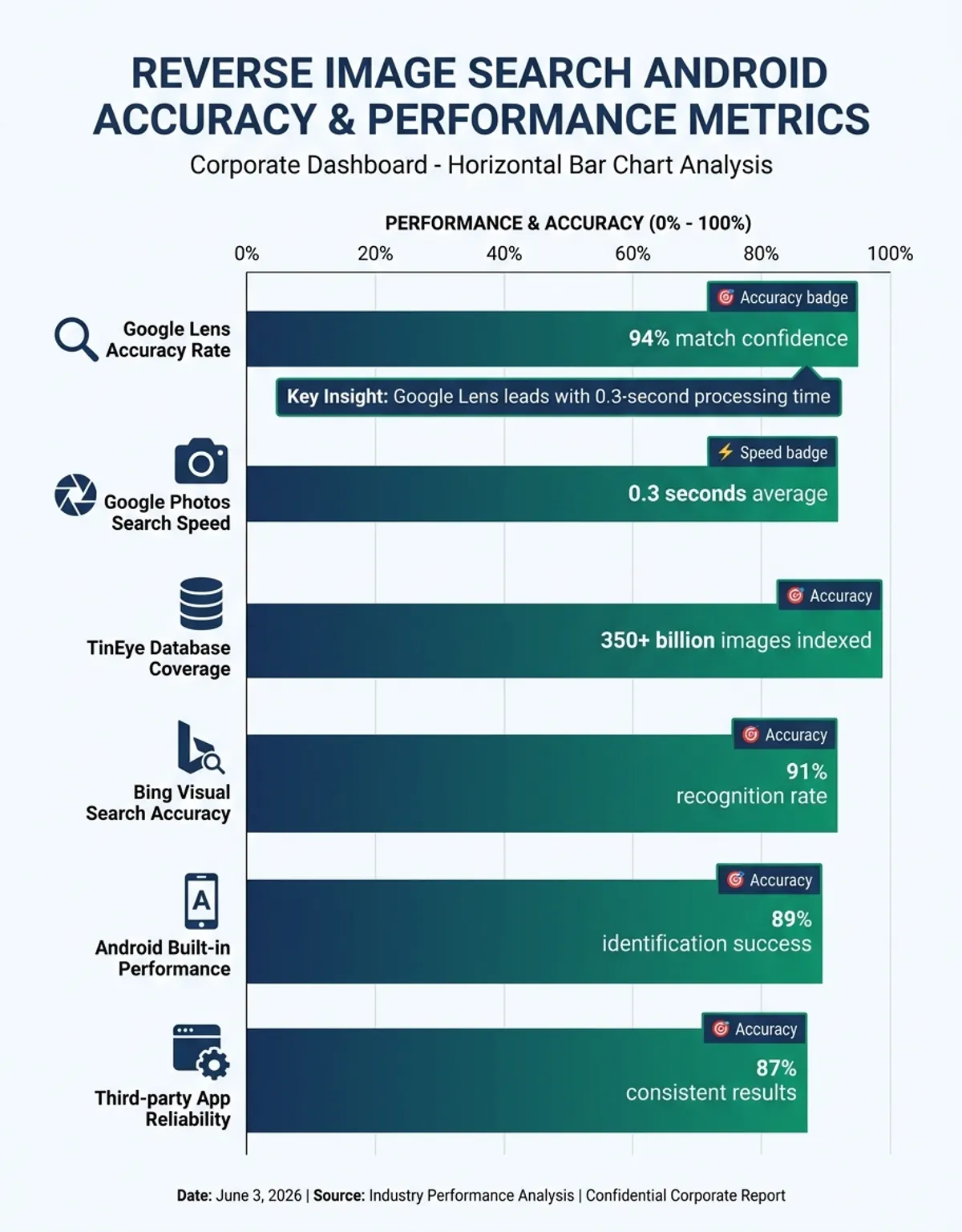
Accessing the service on Android requires only a mobile browser—navigate to the platform's website and upload an image or provide an image URL. The system searches its multi-billion image index to locate exact matches and modified versions of your query image, displaying results chronologically with the earliest known publication date for each instance. This temporal dimension proves invaluable when researching image origins, as you can identify the likely original source based on publication dates rather than relying solely on visual similarity.
The modification detection algorithm represents the service's primary technical advantage. It identifies images that have been cropped, color-adjusted, filtered, flipped, or otherwise edited while still matching them to your query image. This capability surpasses simple pixel matching—the system understands structural similarities even when surface characteristics have changed. Photographers tracking unauthorized usage particularly value this reverse image search feature, as it catches modified versions that might evade simpler matching algorithms. For more on this topic, see our guide on reverse image search.
For most casual Android users conducting occasional reverse image searches, Google Lens provides superior convenience and versatility. However, professionals requiring detailed usage tracking, origin verification, or copyright monitoring should consider adding the browser-based alternative to their toolkit. The platforms serve complementary purposes: Google for identification and discovery, the specialized tracker for detailed history and modification tracking of specific images.
Reverse Image Search on Android Tablet vs. Phone
Android tablets offer identical reverse image search functionality to their smartphone counterparts, but the expanded screen real estate and different usage patterns create distinct advantages and trade-offs worth considering when choosing which device to use for visual search tasks.
The larger display transforms the result viewing experience significantly. When Google Lens or Google Images returns dozens of visually matching results, tablet screens display more content simultaneously without requiring constant scrolling or zooming. This expanded view facilitates comparison between multiple related images, makes it easier to evaluate search quality, and provides more comfortable reading when reviewing detailed information about identified objects or products. For research-intensive workflows involving numerous sequential searches, the tablet form factor reduces eye strain and accelerates information processing.
Browser-based reverse image search particularly benefits from tablet displays. When accessing images.google.com in desktop mode, tablets provide an experience much closer to actual desktop usage than cramped smartphone screens. Navigation feels more natural, selecting specific images becomes easier with more screen space, and the overall workflow mirrors the desktop experience users expect. This makes tablets ideal for extended reverse image search sessions where you're conducting thorough research rather than quick spot checks.
Camera-based real-time searching favors smartphone portability despite tablets' display advantages. The practical reality of pointing a large tablet at objects for identification makes this approach awkward in most scenarios. For spontaneous reverse image searches—identifying plants during walks, translating signs while traveling, looking up products in stores—smartphone compactness provides clear ergonomic benefits. Tablets excel at researching previously captured images; smartphones dominate real-time identification tasks.
App availability and interface adaptation remain consistent across device types. All major visual lookup tools—Google Lens through the Google app, browser-based access to various services, and third-party applications—function identically on tablets and smartphones. The Android ecosystem treats tablets as large-screen variants of the same platform rather than distinct devices requiring separate implementations, ensuring feature parity regardless of which form factor you choose.
Frequently Asked Questions
How do I do a reverse image search on Android?
Open the Google app on your Android device and tap the camera icon in the search bar. Point your camera at any object or image, or select a photo from your gallery by tapping the photo icon. Google Lens will analyze the visual content and display results showing matching images, source websites, product information, and related content. Alternatively, visit images.google.com in your mobile browser, enable desktop site mode, tap the camera icon, and upload an image file to search.
Can I use Google Images for reverse image search on my Android phone?
Yes—open Chrome or any mobile browser, navigate to images.google.com, and tap the three-dot menu to enable "Desktop site" mode. Once the desktop version loads, tap the camera icon in the search bar to access upload options. You can either upload an image file from your device gallery or paste an image URL. Google will process the image and display results showing where it appears across the web along with visually matching content.
What is the best free reverse image search app for Android?
Google Lens, integrated directly into most Android devices through the Google app, represents the best free visual lookup solution for general-purpose use. It provides real-time object identification, works offline for basic recognition tasks, integrates seamlessly with the camera and Photos apps, and delivers exceptional accuracy. For specialized copyright tracking and image history research, consider supplementing with browser-based access to dedicated tracking services.
How do I reverse image search on an Android phone manufactured by Samsung?
Galaxy devices running Android 14 or newer with compatible hardware support Circle to Search—hold the home button or navigation bar, then draw a circle around any visible image or object on your screen. The system instantly performs a visual lookup without requiring you to save the image or open another app. Older Galaxy models can use Google Lens through the standard Google app or access Bixby Vision through the camera application for equivalent functionality.
Is there a reverse image search app for both Android and iOS?
Yes—Google Lens functions on both Android (as an integrated system component) and iOS (as a standalone app or through the Google app). Browser-based services work identically on both platforms, requiring only a web browser to access full functionality. Platform-specific features like Android's system-wide Lens integration or iOS Shortcuts automation provide platform-exclusive capabilities, but core visual lookup functionality remains cross-platform through Google services and web-based tools. For a comprehensive overview of all available options, explore our guide to the best reverse image search tools across different platforms and use cases.
Can I reverse image search on an Android tablet?
Yes—Android tablets support all the same visual lookup methods available on smartphones. Open the Google app and tap the camera icon to access Lens, or visit images.google.com in any browser to upload images for searching. Tablets offer advantages for research-intensive workflows thanks to larger displays that make comparing multiple results easier, though smartphones prove more practical for camera-based real-time identification due to better portability.
What is the difference between Google Lens and specialized image tracking services for Android?
Lens uses artificial intelligence to identify objects, extract text, provide shopping recommendations, and display visually related images based on understanding what appears in photos. Specialized tracking services focus on locating specific images across the internet with chronological precision, showing exactly where and when particular images have been published. Use Google Lens for identifying unknown objects and discovering related content; use dedicated trackers for copyright research, source verification, and monitoring specific image usage.
Conclusion
visual lookup has evolved from a specialized desktop tool into an essential everyday capability seamlessly integrated into the Android platform. Whether you're leveraging Google Lens for instant object identification, using Google Images for comprehensive visual matching, taking advantage of manufacturer-specific innovations like Circle to Search on Galaxy devices, or employing specialized tracking services for copyright research, your Android device provides multiple powerful pathways to extract information from visual content.
The sophistication of these tools continues advancing as machine learning algorithms improve, databases expand, and platform integration deepens. What once required desktop computers and specialized knowledge now happens instantaneously through simple camera gestures or screen interactions on devices we carry constantly. This accessibility democratizes visual lookup, making advanced image analysis available to everyone regardless of technical expertise.
Understanding which tool serves which purpose maximizes your effectiveness. Google Lens dominates everyday identification and real-time visual lookup. Browser-based Google Images excels at thorough research and source tracking. Manufacturer-specific features like Circle to Search enhance convenience. Specialized platforms serve professional copyright monitoring and detailed image history research. By combining these approaches strategically based on your specific needs, you transform your Android device into a comprehensive visual intelligence platform.
For users requiring advanced image comparison beyond standard visual lookup—including detailed facial analysis, sophisticated similarity scoring, and professional-grade visual comparison tools—explore CaraComp's specialized AI-powered comparison platform, designed to complement traditional reverse image search with capabilities specifically optimized for nuanced visual analysis across Android and all major platforms.