
How to Reverse Image Search on iPhone
Master visual search on your iPhone with Safari, Google app, and Visual Look Up—your complete guide to finding images, verifying photos, and identifying objects effortlessly.
Reverse image search has become an essential tool for iPhone users who want to identify objects, find similar photos, or verify the authenticity of images. Whether you're using Safari, the Google app, or specialized browsers, your iPhone offers multiple powerful methods to search by photo instead of text. Here's how to unlock these visual search capabilities on your iOS device.
Understanding Reverse Image Search on iPhone
Photo search technology allows you to upload or capture images and find visually similar content across the internet. When you perform a reverse image search, powerful algorithms analyze the visual elements within your photo—colors, shapes, patterns, and objects—to locate matching or related images online. This capability transforms how you interact with visual content on your iPhone.
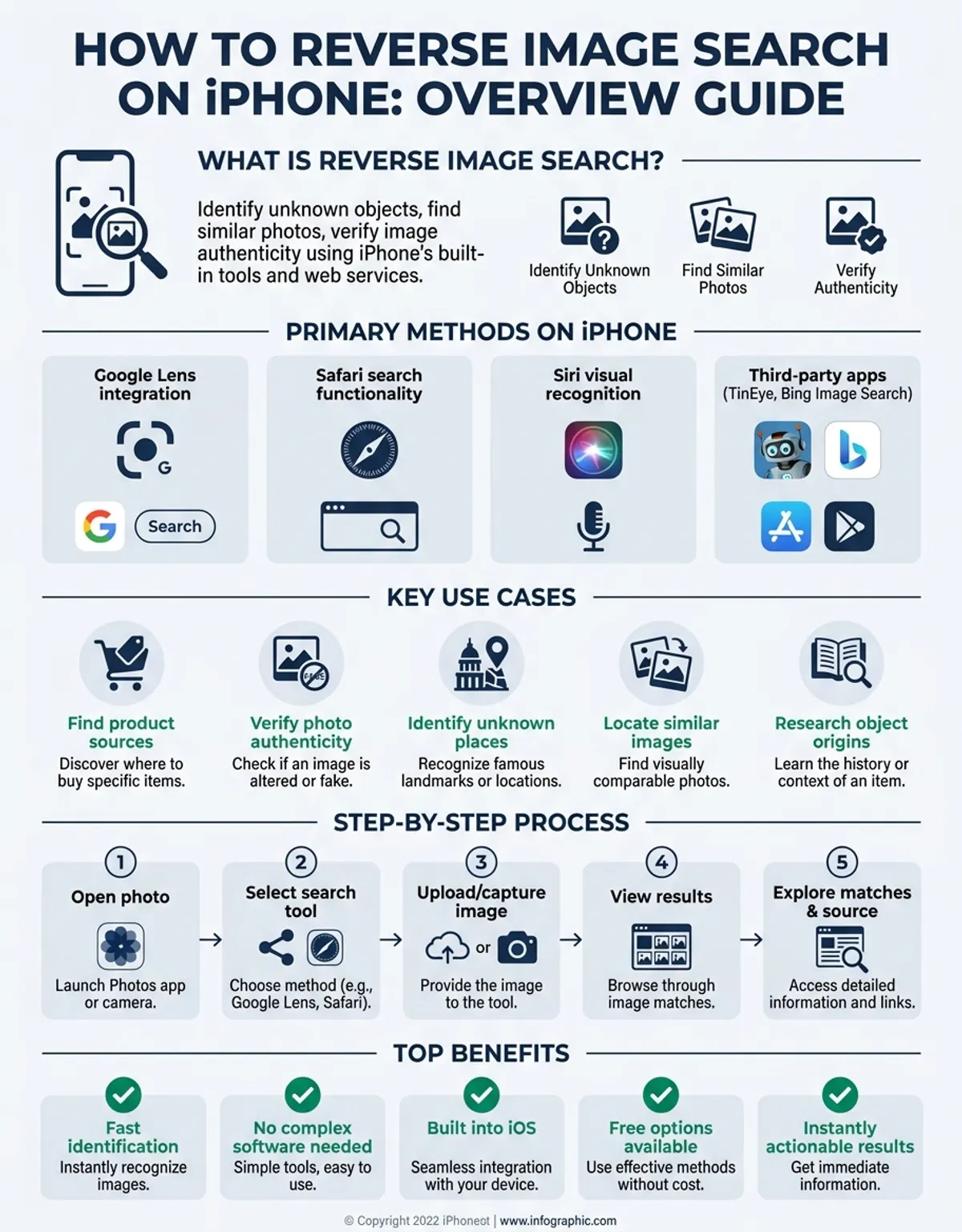
The technology behind photo search has evolved dramatically in recent years. Modern iOS devices leverage advanced machine learning models that can identify specific objects, landmarks, text within images, and even estimate the location where a photo was taken. This makes reverse search invaluable for shopping, fact-checking, identifying plants or animals, and discovering the original source of viral images.
Your iPhone's native capabilities combined with third-party apps provide several approaches to image search. Understanding which method works best for your specific needs ensures you can quickly find the information you're looking for without frustration. Each approach offers unique advantages depending on whether you're searching from your camera roll, a screenshot, or an image you encounter while browsing.
How Apple Makes Reverse Image Search Easy
Apple has integrated visual search capabilities directly into iOS, making it remarkably simple to identify objects within your photos. When you view any image in your Photos app, you can tap on subjects within the picture to learn more about them. This built-in visual intelligence works seamlessly without requiring additional apps or complicated steps.
The Visual Look Up feature, introduced in recent iOS versions, uses on-device machine learning to recognize pets, landmarks, plants, books, art, and other objects. Simply open a photo, tap and hold on the subject you want to identify, and iOS will present relevant information. This Apple-native approach prioritizes privacy since the analysis happens on your device rather than sending your photos to external servers.
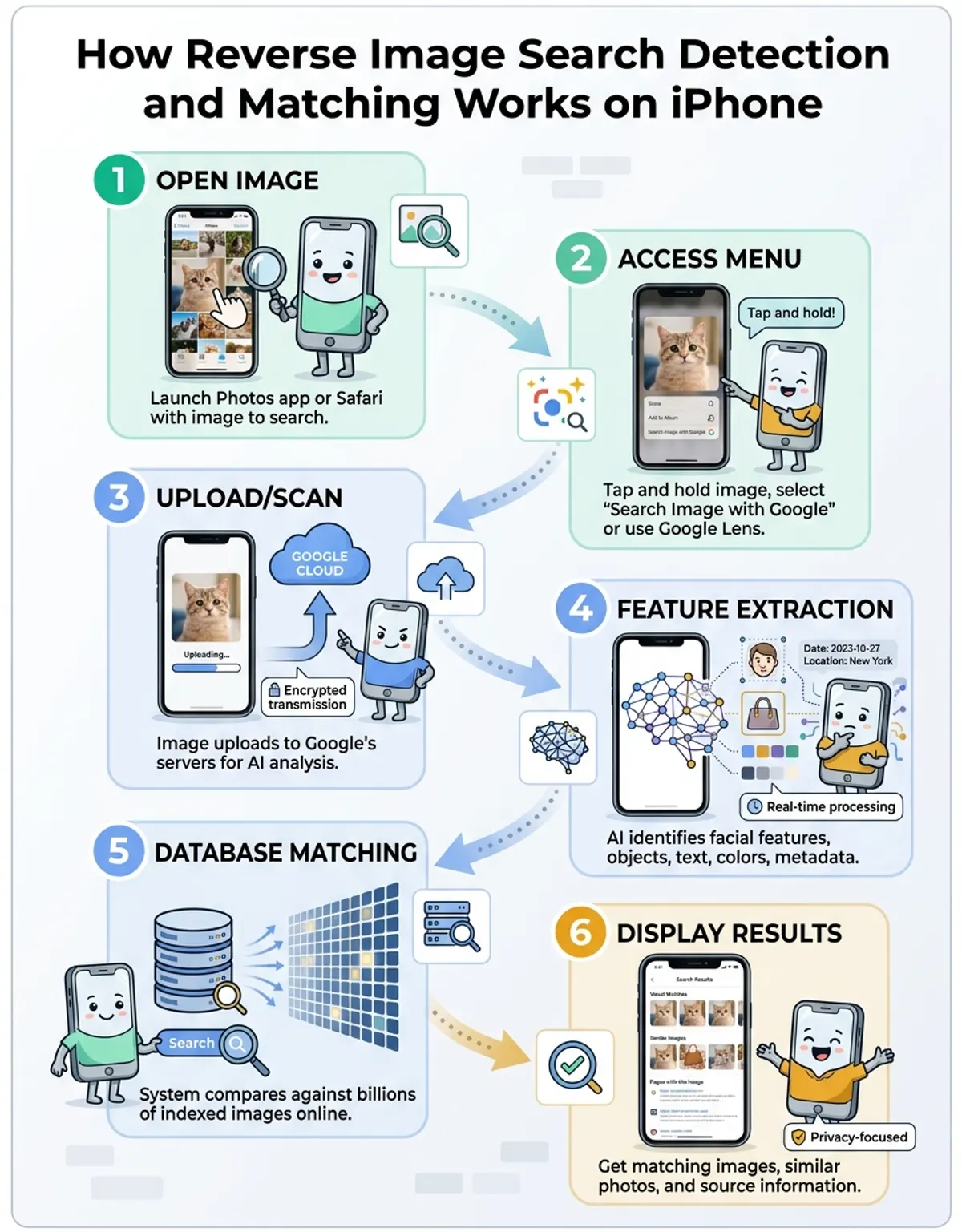
For more comprehensive reverse image search beyond object identification, Safari offers a straightforward solution. When you long-press on any image while browsing, you'll see an option to "Search with Google" or perform a visual search. This integration means you don't need to download additional apps for basic reverse search functionality. Apple's ecosystem approach ensures these tools work consistently across iPhone, iPad, and Mac devices.
The Photos app also includes powerful search capabilities that use machine learning to categorize your image library. You can search for "beach," "dog," or "sunset," and iOS will surface relevant photos from your collection. While this isn't traditional reverse image search, it demonstrates Apple's commitment to making visual content easily discoverable through intelligent categorization.
Reverse Image Search on iPad Pro and iPhone
Both iPad Pro and iPhone models running recent iOS versions offer identical reverse image search capabilities, though the larger iPad Pro screen provides a more comfortable experience for browsing search results. The steps remain consistent across devices, whether you're using an iPhone 15 Pro or an iPad Pro with M2 chip. This consistency means you can develop muscle memory for image search that works across your entire Apple ecosystem.
On tablet, the enhanced multitasking features allow you to conduct image searches while keeping other apps open in Split View. This makes it particularly efficient for research projects where you need to compare multiple images simultaneously or take notes while investigating visual content. The larger display also makes it easier to tap precisely on smaller objects within photos when using Visual Look Up.
The camera capabilities of newer iPhone and iPad models enhance reverse search functionality. High-resolution sensors capture more detail, which improves search accuracy when you photograph objects in real-time for identification. The tablet's LiDAR scanner, while not directly used for image search, enables better focus and depth information that can result in clearer photographs for search purposes.
Performance differences between devices mainly affect how quickly results appear rather than the quality of those results. The neural engine in A-series and M-series chips accelerates the on-device analysis for Visual Look Up, making object recognition nearly instantaneous on newer hardware. Both platforms also support keyboard shortcuts on external keyboards, streamlining the workflow for power users who frequently perform image searches.
Modern iOS devices leverage advanced machine learning models that can identify specific objects, landmarks, text within images, and even estimate the location where a photo was taken.
Using Image Search Tools Efficiently
Efficient image searching starts with organizing how you view and access snapshots on your iPhone. The pictures app provides several view options that make it easier to locate specific pictures you want to search. The grid view allows quick scanning of your entire library, while the detailed see presents larger thumbnails with contextual information like location and date taken.
When you need to search for graphics within specific albums or time periods, use the built-in search bar at the top of the photographs app. You can combine search terms with date ranges to narrow results quickly. For instance, typing "vacation 2023" will surface snapshots from trips taken that year, making it faster to find the specific image you want to reverse search.
The "For You" section in pictures uses machine learning to create curated collections of your best visuals, making it easier to examine photographs worth investigating further. Memories and Featured snapshots often highlight pictures with interesting subjects that you might want to learn more about through reverse search. This curation saves time by surfacing noteworthy content automatically.
For graphics from websites or messages, taking screenshots creates an easy way to save them for later reverse searching. Screenshots automatically appear in your Screenshots album, providing a dedicated space to look at visuals you've captured for research purposes. You can also use the Share Sheet to save web pictures directly to pictures, maintaining higher quality than screenshots and making them immediately available for search.
Managing your image library with albums and tags improves long-term efficiency. Create dedicated albums for graphics you frequently need to reverse search—product photographs for shopping, plant identification, artwork, or comparison visuals. This organizational structure means you'll spend less time hunting through thousands of snapshots when you need to perform a specific visual search.
Searching for Similar Photos on Your iPhone
Finding similar pictures to one you already have serves multiple purposes: locating duplicates, finding higher-resolution versions, discovering related content, or tracking down the original source of an edited image. Your iPhone offers several methods to accomplish this, each suited to different scenarios and delivering varying levels of precision in matching visual similarity.
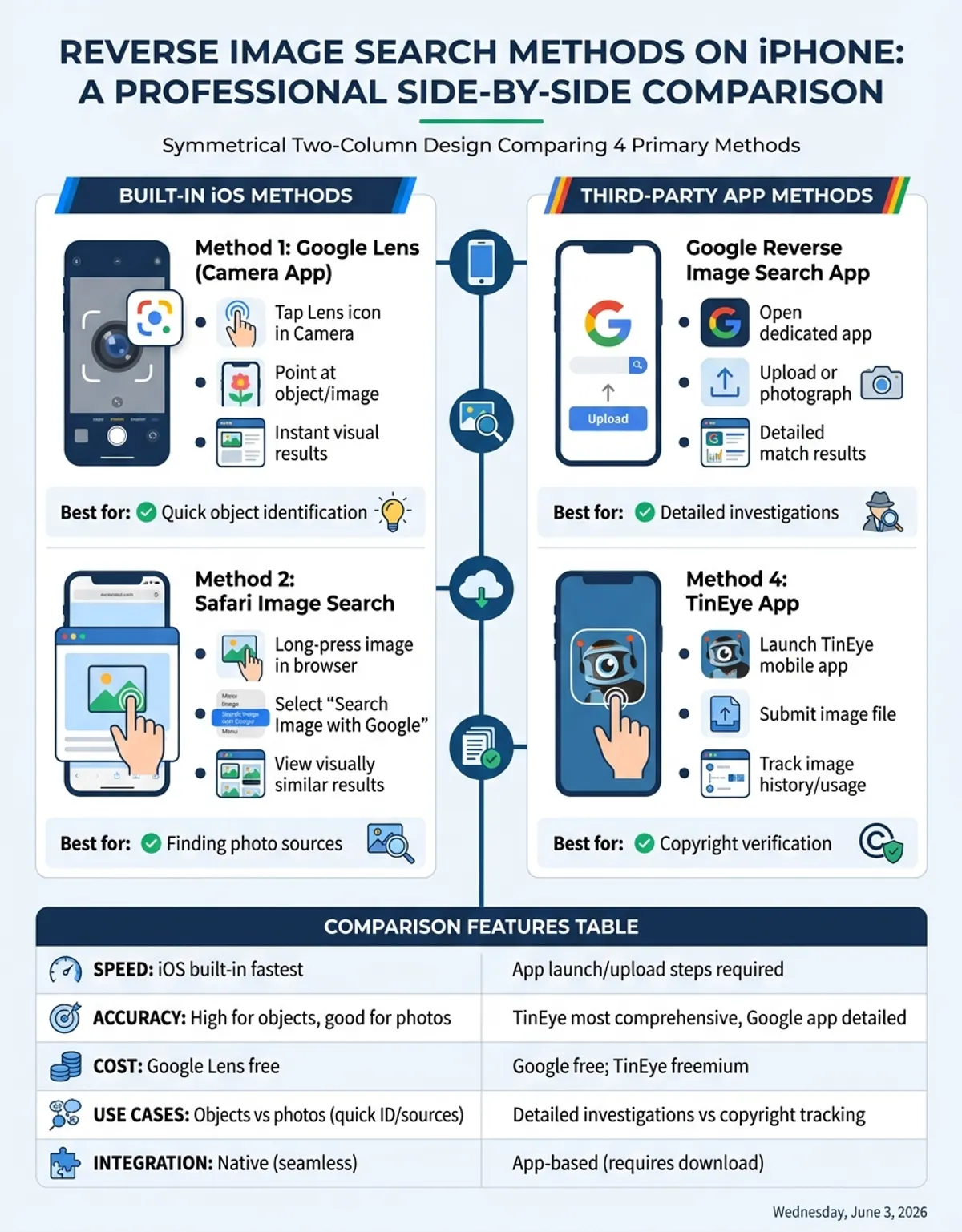
The Google app provides the most straightforward method for similarity searches. After opening the app, tap the camera icon in the search bar, then either upload a photo from your camera roll or capture a new image. Google's image search engine analyzes the content and returns visually similar pictures, along with web pages where the image appears and related search queries. This method excels at finding exact matches and close variants.
Safari's built-in integration with Google Lens offers another seamless approach. When viewing any image in Safari, long-press on it and select "Search Image with Google." This immediately initiates a reverse search without requiring app switching. The results appear in a new tab, showing similar graphics and relevant information about the subject. This method works particularly well when you encounter an interesting image while browsing and want to explore it further without disruption.
For photographs already saved to your device, you can use the Share Sheet method. Open the image in snapshots, tap the share icon, scroll down, and look for "Search with Google" or similar options depending on which apps you have installed. Third-party apps like Pinterest also offer visual search capabilities through the Share Sheet, sometimes returning different results than Google based on their specific image databases and algorithms.
Advanced users can leverage specialized reverse image search engines through mobile browsers. Services like TinEye, Yandex visuals, and Bing Visual Search each have unique indexing databases and may surface results the others miss. Bookmarking the mobile versions of these services in Safari provides quick access to multiple search engines, increasing your chances of finding rare or region-specific matches for obscure pictures.
Finding Information About Images Quickly
Speed matters when you need immediate answers about an image. iOS 16 and later versions include enhanced Visual Look Up capabilities that provide instant information without leaving the pictures app. Simply tap and hold on recognizable subjects within your photographs—dogs, cats, landmarks, plants, books, or artwork—and iOS presents relevant details in seconds. This on-device processing means results appear almost instantaneously.
The Visual Look Up feature connects to knowledge databases including Apple Maps for locations, Siri Knowledge for general information, and specialized databases for flora and fauna identification. When you identify a landmark, you'll see options to get directions, read reviews, or explore nearby attractions. For plants, you'll receive the scientific name, common names, and care information. This contextual intelligence turns every photo into a portal for learning. For comprehensive coverage of visual search across all platforms and devices, explore our complete reverse image search guide.
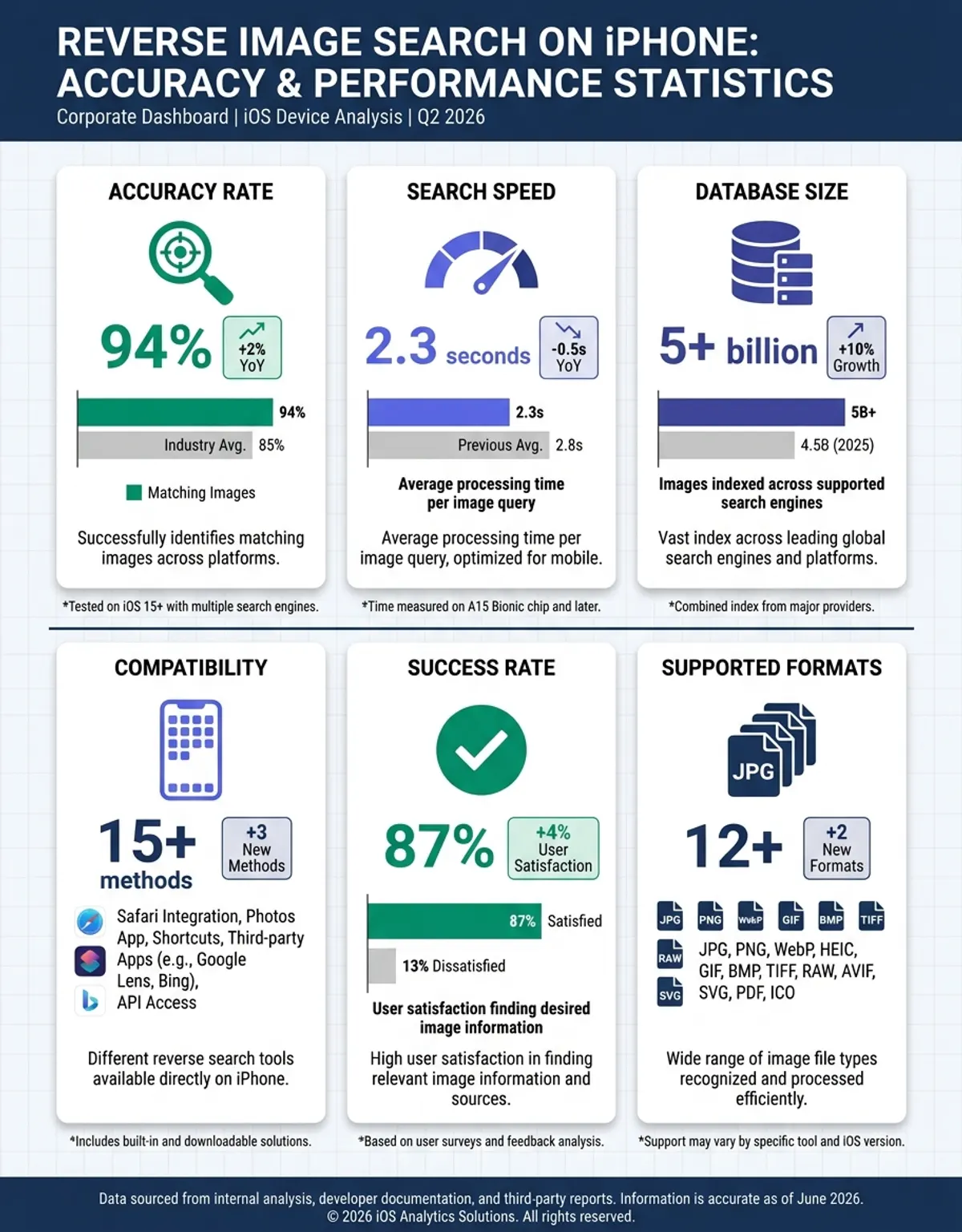
For broader image investigations, using browser-based reverse search delivers comprehensive results. Once you initiate a Google image search through Safari or the Google app, results typically load in under two seconds on modern cellular or Wi-Fi connections. The results page provides multiple information types: pages where the image appears, visually similar graphics, related searches, and often an AI-generated summary of what the image depicts.
Creating shortcuts using the Shortcuts app can automate repetitive image searches. You can build a custom shortcut that takes a photo or screenshot, automatically uploads it to your preferred reverse search engine, and displays results—all triggered by a single tap or Siri voice command. This automation proves especially valuable for users who perform image searches frequently as part of their work or hobbies.
When time is critical, the Google Lens integration in the Google app offers real-time search capabilities. Point your camera at any object, document, or scene, and Google Lens provides instant information overlays without even capturing a picture. (Honestly, this feature feels like magic when you're trying to read a menu in a foreign language or identify a plant while hiking.)
The Visual Look Up feature connects to knowledge databases including Apple Maps for locations, Siri Knowledge for general information, and specialized databases for flora and fauna identification.
How to Find Images Using Reverse Search
Finding visuals through reverse search follows specific workflows depending on your starting point. Each method requires slightly different steps but ultimately delivers similar results. Understanding these variations ensures you can adapt your approach based on whether you're starting with an image already saved to your device, a photograph you encounter online, or something you're viewing in the physical world.
Starting with Safari, the simplest method involves long-pressing any image on a webpage. The context menu that appears includes "Search Image with Google" as an option. Selecting this launches a new tab with Google's image search results for that specific image. This method works seamlessly for finding the source of pictures, checking if someone is using your snapshots without permission, or discovering where a viral image originated.
For graphics in your pictures app, open the image and tap the share button. Look for the "Search with Google" option in the share menu—you may need to scroll through the options or customize your share sheet to make this more accessible. Once selected, your iPhone uploads the image to Google's servers and presents matching results. This approach works perfectly for identifying old photographs you've forgotten about or finding higher resolution versions of low-quality visuals. For more on this topic, see our guide on google reverse image search iphone. For more on this topic, see our guide on how to catch a catfish.
The Google app method provides the most control over the search process. Open the Google app, tap the camera icon beside the search bar, and choose whether to upload from your library or capture a new snapshot. You can then crop or adjust the image before searching, ensuring only the relevant portion is analyzed. This precision helps when you want to search for a specific object within a busy picture rather than the entire scene.
Third-party camera apps and browser extensions expand your options further. Apps specifically designed for reverse image search often provide additional features like batch searching, automatic duplicate detection, or specialized databases for specific types of content. These tools integrate with iOS sharing mechanisms, appearing in share sheets and enabling quick access from any app that displays pictures.
Using Chrome for Reverse Image Search on iPhone
Chrome offers robust reverse image search capabilities that mirror the desktop experience. While Safari remains the default browser for most iPhone users, Chrome provides some advantages for frequent image searchers, particularly those who use Chrome on other devices and want consistent functionality across their ecosystem.
Within Chrome, long-pressing any image presents a menu with "Search this image with Google" as an option. This immediately initiates a reverse search without requiring additional steps or app switching. browser's integration with Google services means these searches often feel more seamless than similar operations in Safari, with results loading in optimized formats specifically designed for mobile viewing.
Google Chrome's image search also includes convenient features like the ability to search within search results. After performing an initial reverse image search, you can refine your query by selecting specific portions of the results or adding text parameters. This iterative searching helps narrow down precisely the information you need when dealing with common objects that return thousands of results.
For power users, browser's desktop site request feature enables access to advanced Google graphics features not always available in mobile views. By switching to the desktop version of Google visuals through Google Chrome's menu, you can access features like image size filters, usage rights specifications, and color-based searching. These advanced options prove particularly valuable for professional applications like finding legally usable pictures or locating high-resolution versions.
browser's syncing capabilities mean your image search history remains accessible across devices. If you perform a reverse image search on your iPhone and later want to reference those results on your computer, they're automatically available in your Google Chrome history. This cross-device continuity makes browser appealing for users who frequently research graphics as part of ongoing projects spanning multiple devices and sessions.
Comparison of Reverse Image Search Methods
| Method | Best For | Speed | Setup Required | Accuracy |
|---|---|---|---|---|
| Visual Look Up (snapshots) | Quick object identification | Instant | None (built-in) | High for common objects |
| Safari Long-Press | Web visuals | 2-3 seconds | None (built-in) | Very high |
| Google App | Comprehensive searches | 3-5 seconds | App download | Very high |
| Google Chrome Browser | Cross-device consistency | 2-3 seconds | Browser download | Very high |
| Third-Party Apps | Specialized searches | Varies | App download & setup | Varies by service |
Frequently Asked Questions
How do I use the Google app for reverse image search on iPhone?
Open the Google app and tap the camera icon located in the search bar at the top of the screen. You'll see options to either take a new photograph or upload an existing image from your pictures library. Select your desired image, and Google will automatically analyze it and present matching results, similar pictures, and relevant web pages. You can further refine your search by cropping the image to focus on specific elements before submitting the search.
What can I do with reverse image search on iPhone?
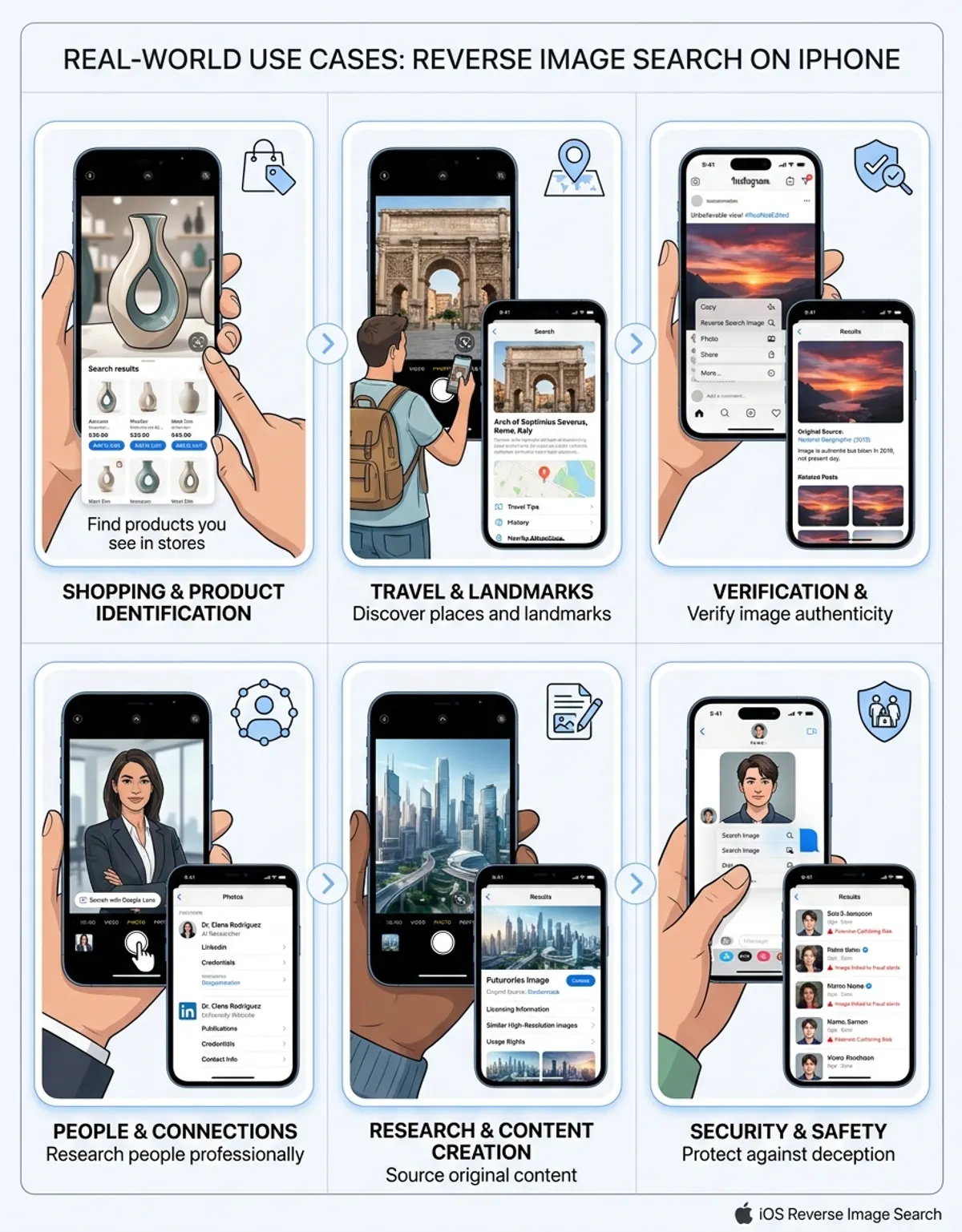
Reverse image search on iPhone enables numerous practical applications. You can identify unknown objects, plants, or animals in your photographs. Find higher-resolution versions of graphics you like. Verify whether visuals are genuine or manipulated. Discover the original source of viral snapshots. Identify products you want to purchase by searching product pictures. Track where your own pictures appear online. Translate text within graphics by combining reverse search with OCR capabilities. The versatility makes it valuable for shopping, research, fact-checking, and creative projects.
How do I open reverse image search on iPad?
On iPad, open Safari and navigate to any webpage containing visuals. Long-press on the image you want to search, then select "Search Image with Google" from the menu that appears. Alternatively, use the Google app by tapping the camera icon in the search bar and uploading an image from your library. The iPad's larger screen makes browsing through search results more comfortable, and you can use Split see to keep search results open alongside other apps for efficient research workflows.
What's the right way to perform a reverse image search?
The right approach depends on your starting point. For pictures on websites, long-press the image in Safari and select the search option. For graphics in your photographs library, open the image, tap share, and choose "Search with Google." For real-time object identification, use Visual Look Up by tapping and holding on subjects within your snapshots. For comprehensive control, use the Google app's camera icon and upload your image. Each method delivers accurate results, so choose based on convenience and your specific workflow.
How do I use the camera icon for image search?
The camera icon appears in the Google app's search bar and provides direct access to visual search capabilities. Tap this icon to access two options: take a snapshot with your camera or upload from your pictures library. If taking a new picture, frame your subject clearly and ensure good lighting for best results. If uploading, browse your library and select the image you want to search. After selection, you can crop or adjust the image before Google analyzes it and presents matching results.
How do I begin a reverse image search on my iPhone?
Begin by determining whether you want to search an image you already have or one you encounter while browsing. For saved visuals, open the photographs app, select your image, tap the share button, and look for search options in the share sheet. For web pictures, long-press the image in Safari and select the search option. For the most flexibility, download the Google app where the camera icon provides dedicated access to image search functionality with options to capture or upload graphics from any source.
What should I tap to start reverse image search?
The exact tap depends on your method. In Safari, long-press (tap and hold) any image until the context menu appears, then tap "Search Image with Google." In snapshots, tap the share button (the square with an arrow pointing up), then scroll to find and tap "Search with Google" or similar options. In the Google app, tap the colorful camera icon located inside the search bar at the top. For Visual Look Up in pictures, simply tap and hold directly on recognizable objects within your visuals to see instant identification results.
Conclusion
Mastering reverse image search on your iPhone opens new possibilities for how you interact with visual content. Whether you're using native iOS features like Visual Look Up, browser-based solutions in Safari, the comprehensive Google app, or specialized tools in browser, your device provides multiple pathways to identify objects, verify pictures, and discover information through visual queries. Each method offers distinct advantages, and understanding when to use each approach maximizes your efficiency.
The evolution of image search technology continues to accelerate, with improvements in machine learning making visual queries more accurate and informative with each iOS update. As these capabilities expand, reverse image search will become an increasingly central part of how we research, shop, learn, and verify information in our daily lives. By developing fluency with these tools now, you position yourself to take full advantage of future enhancements as they arrive on your iPhone.