
Photo Comparison Tool: Compare Images Online for Differences
Your definitive guide to selecting, using, and mastering image analysis platforms for pixel-perfect results.
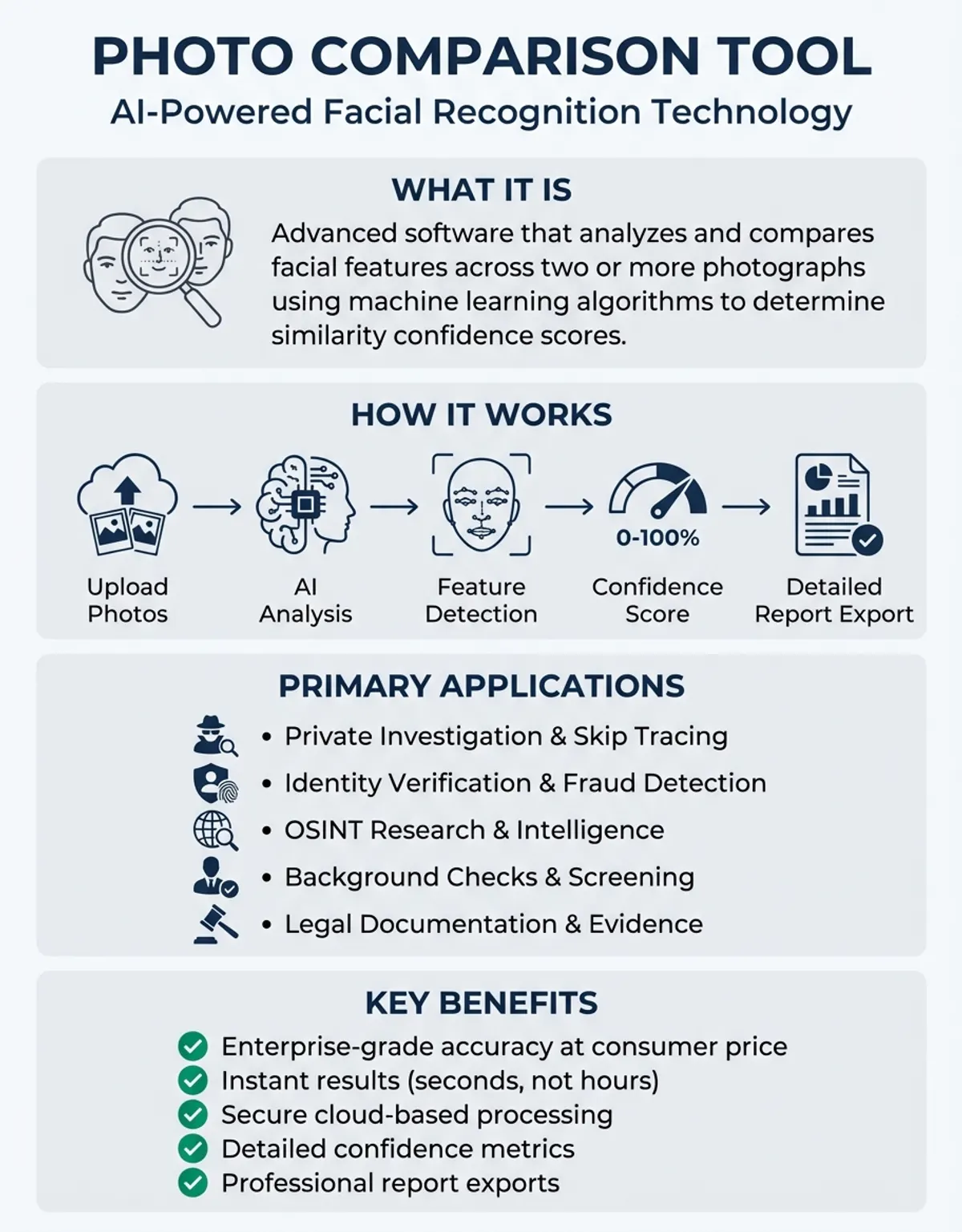
Selecting the right comparison tool can save hours of manual side-by-side inspection when you need to analyze two uploaded images for changes. Whether you are a graphic designer checking revisions on image files, a photographer reviewing photo edits, or a QA professional analyzing screenshots, a dedicated image comparison tool makes the process fast and reliable. Modern free platforms let you view and analyze images online without installing software, drag your images into a browser window, and get pixel-level results in seconds.
This guide covers everything about selecting and using an image analysis platform to compare images effectively. We break down the key capabilities that matter, walk through how to view and check your image files step by step, explain the distinctions between basic and premium comparison tools, and review the leading image comparison solutions available today. By the end you will understand how to prepare your image uploads for accurate results, how pixel measurement metrics work, and how data-handling policies affect your uploaded images and media files. The advanced image comparison technology behind these tools continues to advance, and understanding it gives you a meaningful edge in any image workflow.
Upload and Compare Images
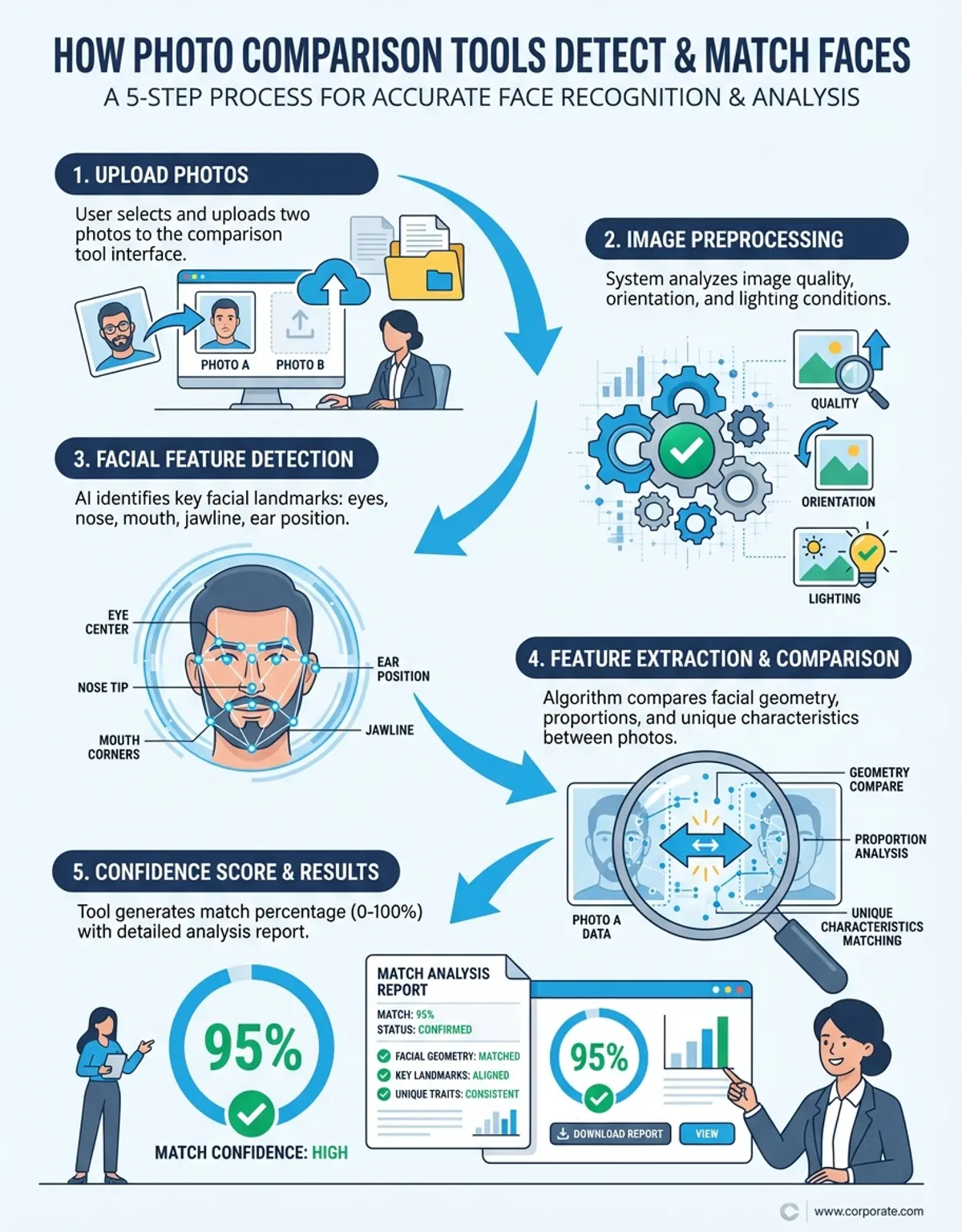
Analyzing two uploaded visuals online is straightforward once you know the basic workflow. Most browser-based platforms follow a similar process, so these steps apply to nearly any platform you choose. Being methodical about each stage ensures you detect real differences every time.
Navigate to the platform in your browser and upload both visuals. Most programs let you drag them directly onto the page or click to browse your local storage. Some also accept input by pasting a web address, letting you compare images hosted online without downloading each one first. Once both visuals are loaded, the platform automatically aligns them and prepares for analysis.
If the two images have slightly mismatched dimensions or orientations, the platform may offer automatic alignment. Enable this to ensure the analysis measures actual content changes rather than positional shifts. For the best results when you compare images, use file uploads with identical resolution and aspect ratio. Mismatched dimensions force the platform to interpolate pixels, which can introduce false positives in the image comparison output.
Choose between side-by-side, overlay, slider, or color-coded change map view. Each mode reveals discrepancies in a distinct way. Side-by-side works best for obvious changes, while the overlay is ideal for detecting subtle pixel-level alterations that are hard to see with the naked eye. The result from each mode gives you a unique perspective on what changed and where.
Use zoom controls to inspect flagged areas. The platform will typically display discrepancies with colored markers or brightness adjustments. Take note of whether the detected differences represent intentional edits, encoding artifacts, or metadata modifications. Many platforms let you export a report or download the annotated output for your records, which is invaluable for team collaboration.
Most online platforms let you download the results as a new visual or a PDF report. If you are working in a team, look for sharing options like direct links to your session. This lets colleagues review the output without re-uploading the same media. Some platforms also support batch processing, which lets you run sequential analyses across dozens of assets without repeating the upload step.
If you need to run analyses directly in your browser without installing software, our image comparison online guide walks through the best web-based options available.
Modern platforms let you analyze visuals online without installing software, drag your uploads into a browser window, and get pixel-level results in seconds.
Comparison Slider: Upload Images to Compare
Not every platform offers the same depth of analysis. Understanding which capabilities matter for your workflow helps you avoid paying for functions you do not need while ensuring you have the capabilities that are critical. Here are the core capabilities to evaluate before committing to a solution.
Pixel-level detection is the foundation of any serious platform. This image comparison tool capability examines every individual pixel across both image files and flags those with changed color values. The best image comparison tools display these as a color-coded overlay, letting you view exactly which regions were altered. Look for adjustable sensitivity thresholds so you can filter out minor noise and focus on meaningful image edits.
Overlay and comparison slider modes give you interactive ways to visualize image changes. The overlay mode stacks one image on top of the other with adjustable opacity, making alignment discrepancies immediately visible. The comparison slider places a draggable divider across the two images, revealing one on each side as you move it. These modes are particularly useful for design QA, where subtle layout shifts can be as important as content changes between image files.
Metadata inspection goes beyond visual analysis. Some platforms display EXIF data side by side, letting you identify when a visual has been stripped of embedded data, re-saved with different software, or had its GPS coordinates removed. This capability is essential for forensic analysis, copyright verification, and asset management workflows.
Batch processing lets you run analyses across hundreds of assets in a single session. This is critical for automated testing pipelines, studios managing large shoots, and design teams handling asset libraries. Without batch capability, each image pair requires manual upload and configuration, which becomes unsustainable at scale. It remains one of the most valuable features a platform can offer.
Compare Images Online: Similarity Checker
A similarity checker tool goes beyond simple overlay modes by calculating a numerical score that quantifies how closely two images match when you images compare them. This approach to image difference detection lets you set thresholds for acceptable variation and automatically flag image file pairs that exceed them. Professional workflows use this comparison tool to analyze and compare images at scale, catching discrepancies that manual image review would miss. The highlighted differences in the output report make it easy to view and locate each altered region, and the resulting score provides an objective measurement you can track across revision cycles.
Choose the Best Compare Images Online Platform
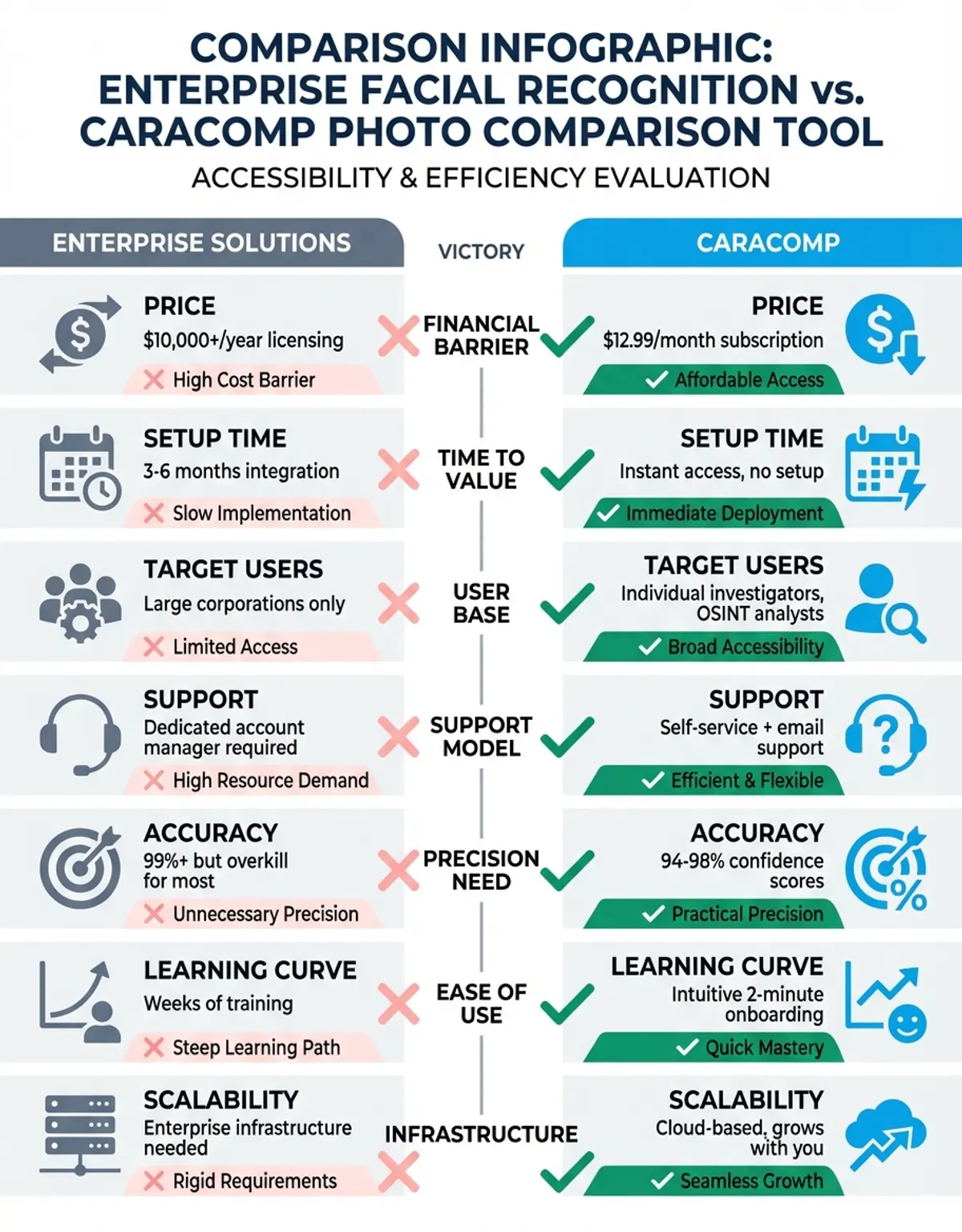
Different workflows demand different capabilities. Here is how the leading solutions stack up across common use cases, from casual browsing to professional forensic analysis. Matching the right solution to your workflow prevents frustration and wasted resources.
For a complete guide to all photo comparison methods and tools, explore our photo comparison resource that covers every approach from casual side-by-side views to professional-grade analysis.
For anyone who wants fast, accurate results without a steep learning curve, CaraComp is worth a look. It runs entirely in the browser, handles side-by-side and overlay modes, and delivers detailed matching scores within seconds. The platform processes everything client-side, so your uploads stay on your device - a real plus when you are working with sensitive material. (Source: https://www.caracomp.com)
For design QA and image file comparison, Beyond Compare stands out with its robust pixel-level detection and folder synchronization capabilities. Designers can analyze entire directories of image files and assets to catch unintended changes during handoff. The platform supports overlaying images with adjustable opacity, which is ideal for checking alignment between mockups and final renders. It functions as both a desktop program and a versatile image analysis suite. (Source: https://www.scootersoftware.com)
For forensic image analysis, Forensically provides error-level analysis that reveals areas of an image file that have been edited and re-saved at different encoding levels. This popular forensic comparison tool is used by journalists and researchers who need to verify the authenticity of image media. Its clone detection capability identifies copied regions within a single image, which is useful for identifying manipulated content in images. (Source: https://29a.ch/photo-forensics/)
For automated testing, Resemble.js integrates into continuous integration pipelines, allowing developers to automatically run an image compare against baseline visuals. This catches visual regressions before they reach production, making it one of the essential solutions for teams that need to track visual changes across releases. (Source: https://rsmbl.github.io/Resemble.js/)
For large image and file libraries, XnView MP handles batch processing across hundreds of image files and assets with support for RAW formats from every major camera manufacturer. Professionals use it to quickly detect discrepancies between similar image shots, identify the sharpest image in a burst sequence, and manage and compare large image libraries efficiently. It remains one of the most capable image analysis tools in its category. (Source: https://www.xnview.com)
Pixel-level detection is the foundation of any serious platform — it examines every individual pixel across both uploads and flags those with changed color values.
Basic image comparison options typically offer side-by-side views, simple overlay modes, and support for any common format. They work well for occasional photo compare checks where you need to catch obvious discrepancies between two images or files. Most free browser-based platforms run entirely in the browser, which means no installation and instant access from any device for image file comparison. Popular free choices include online diffchecker utilities and open-source solutions that serve as a handy image comparison app for everyday use.
Premium platforms add advanced capabilities like AI-powered detection, batch processing of hundreds of assets, API integration, and detailed analytics. They support a wider range of formats including RAW and PSD, and they preserve the full fidelity of your source visuals throughout the process. A premium platform typically pays for itself within weeks through time savings alone.
Step-by-Step Guide to Compare Images Online
Running your first analysis session online is simple when you follow a structured approach. Start by selecting a platform that supports the formats you work with most frequently. Upload both visuals, configure the detection sensitivity, choose a visualization mode, and view the output. This type of tool walks you through each step with on-screen prompts, making the process intuitive even for first-time users. You may also find our guide on how to compare images online.
Pay attention to the sensitivity settings during image file comparison setup. Setting sensitivity too high flags encoding noise as meaningful changes, while setting it too low misses subtle image edits. A good starting point for any image detection tool is medium sensitivity, which you can adjust after reviewing the initial output. The goal is to surface real discrepancies while filtering out image artifacts introduced by format conversion or re-encoding.
Understanding Compare Slider Technology for Images
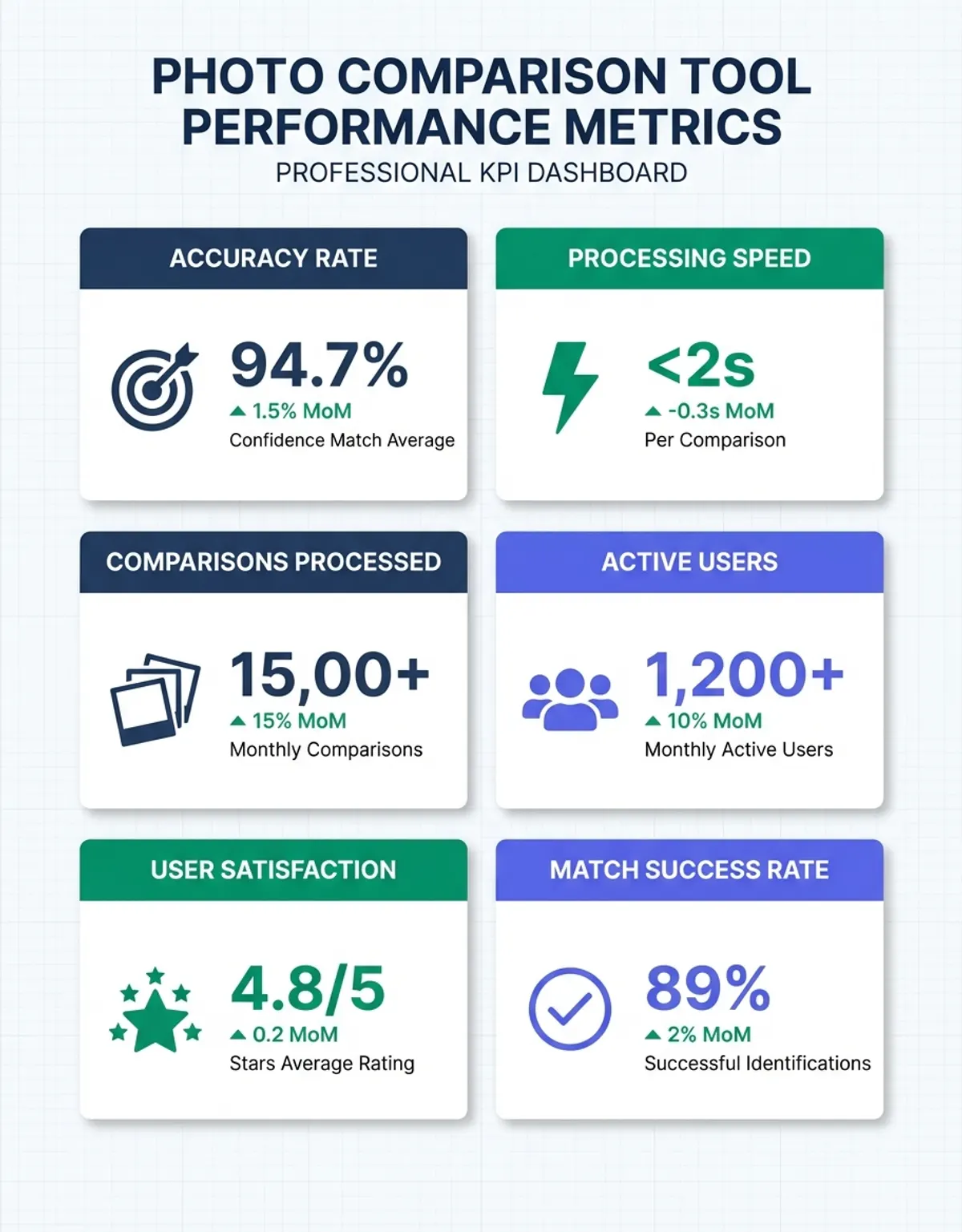
To use an analysis platform effectively, when you compare images it helps to understand the main types of image file changes that detection algorithms identify. Each type of image comparison change has implications for your image files and workflow, and requires different tools to accurately analyze and compare your images. Knowing what the image analysis platform is measuring lets you interpret results with confidence rather than guessing at what the output means.
Pixel-level changes are alterations in the actual color values of individual pixels between two images or image files. These are the most visible type and what most people think of when running an image analysis session to compare images. Pixel discrepancies can result from editing operations like retouching, color correction, cropping, or adding image elements. A good platform displays these as a color-coded overlay, making it easy to view and locate exactly which areas have changed and by how much.
Metadata changes are alterations in the non-visual data embedded in an image file. This includes EXIF image data like camera settings, GPS coordinates, timestamps, and software information. Metadata modifications in images are invisible when viewing the image file, but can be important for forensic image analysis, copyright verification, and image asset management. Some image analysis tools display metadata side by side, letting you identify when an image has been stripped of its embedded data or re-saved with different software.
Encoding artifacts appear when an image file is saved in a lossy format like JPEG. Each time a JPEG image is re-saved, additional lossy processing is applied, introducing subtle image variations. These artifacts typically appear as slight blurring, color banding, or blocky patterns around edges and high-contrast areas in your images. A platform with adjustable sensitivity helps you compare and distinguish between intentional edits and encoding artifacts, which is important when verifying whether an image has been tampered with or simply re-encoded.
Understanding these categories of changes helps you configure your platform correctly and interpret results with confidence. Many apparent differences turn out to be harmless encoding artifacts or metadata modifications rather than actual visual edits. The ability to filter results by change type is one of the most valuable capabilities a platform can offer.
You may also find our guide on how to compare pictures helpful for understanding different visual analysis techniques and workflows. To learn more about visual comparison workflows, check out our guide on how to compare pictures online.
The ability to filter results by change type is one of the most valuable capabilities a platform can offer — distinguishing intentional edits from harmless encoding artifacts.
Upload Your Images for Accurate Results
The accuracy of your analysis depends heavily on how you prepare your uploads before running the session. Mismatched formats, resolutions, or color spaces can introduce false positives that obscure the real differences you are trying to detect. A few minutes of preparation saves significant time interpreting results.
Before analyzing and comparing two images or files, convert them to the same format. Analyzing an image file in JPEG against an image in PNG introduces differences caused by encoding algorithms rather than actual visual changes in the image data. Use a lossless format like PNG or TIFF as your image reference to preserve the full detail of both original image file uploads. Many image comparison tools include a built-in transformation function that handles any common format standardization automatically, so upload your image files and let the platform normalize them if manual conversion is impractical.
Both uploads should have identical pixel dimensions. If one visual is 1920x1080 and the other is 3840x2160, the platform must resize one to match, which introduces interpolation artifacts. Resize both visuals to the same dimensions before uploading for the most accurate results. Use a dedicated editor or batch resizing utility rather than relying on the platform to handle this step.
Images using different color spaces (sRGB vs Adobe RGB, for example) will show variations in color values even if the image file content is identical. Transform both to the same color profile before running the image comparison analysis. sRGB is the safest choice for web-based platforms because it is the standard color space for browser rendering and ensures consistent display of your image files across all devices. Maintaining color quality throughout this process prevents false positives in your final image comparison report.
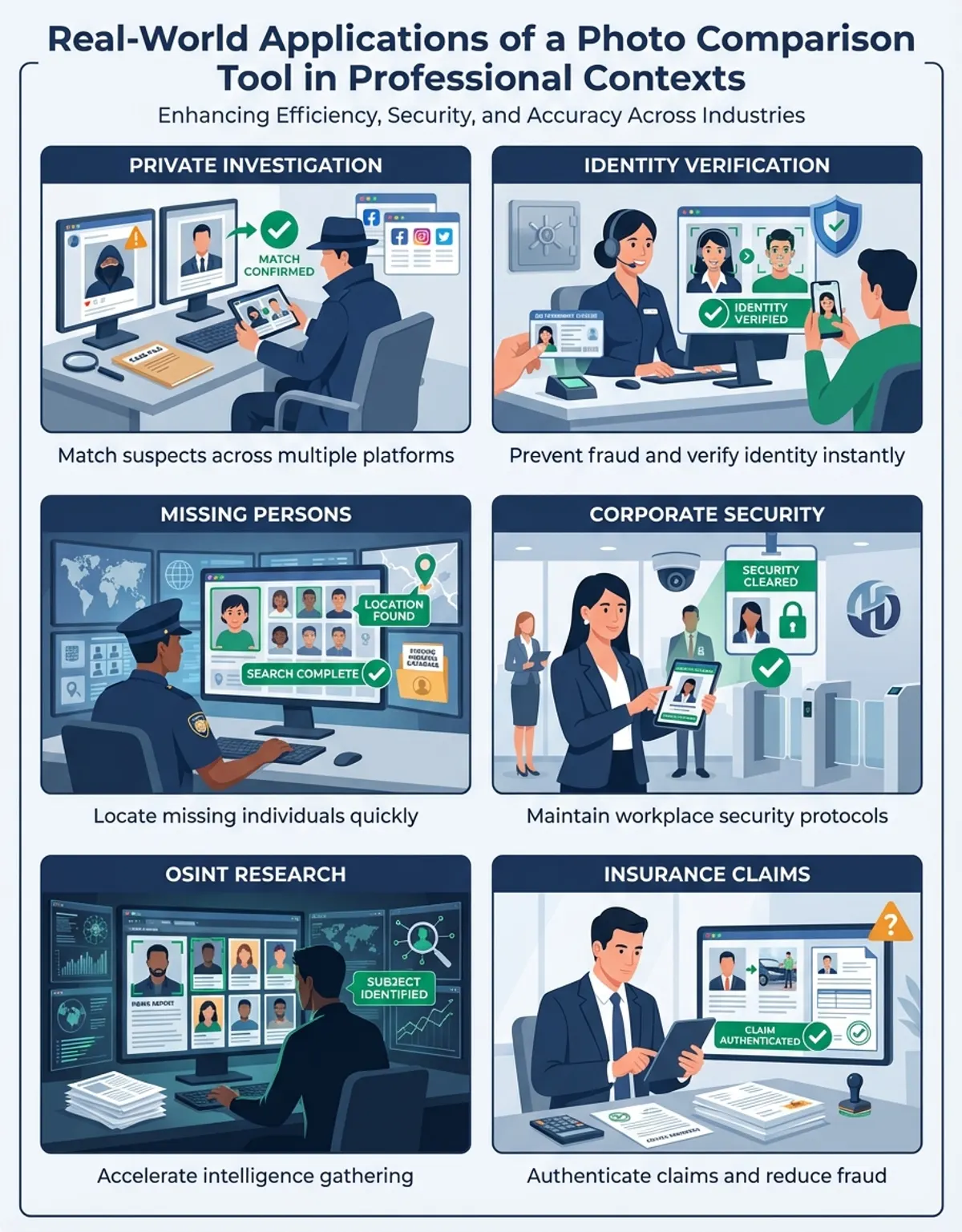
When to Upload and Compare Images
Every image workflow benefits from a dedicated image comparison tool at some stage. Designers use this tool to compare images and files between design iterations, catching unintended differences before client review. Photographers rely on image comparison to evaluate and compare color grading across an entire image series. QA teams use automated image comparison tools to verify that web image assets render identically across browsers and devices. In each case, the tool transforms a tedious manual comparison process into an efficient, repeatable workflow that catches differences humans would overlook when they view images side by side.
Privacy and Security for Uploaded Images
When you upload visuals to an online platform, understanding the data-handling implications is essential. Many users run analysis on sensitive material including confidential design assets, legal evidence, medical visuals, and personal media. Choosing a platform with strong data-handling practices protects both your work and your clients.
Some image comparison platforms run entirely in your browser using JavaScript, meaning your image uploads and files never leave your device. This approach offers the strongest confidentiality guarantee because no data or images are transmitted to external servers. Desktop tools like Beyond Compare and XnView MP also process everything locally, keeping your image files secure. Cloud-based platforms, by contrast, upload your images and files to remote servers for image comparison processing, which introduces data-handling risks even when the provider promises to delete uploads after the session ends.
Check whether the platform retains your uploaded images and files after the session. The best security-conscious platforms delete image uploads immediately after your session ends. Some platforms retain images for a defined period to enable sharing and comparison options, while others may use uploaded image media for machine learning training. Always read the data-handling policy before uploading sensitive images or files. For maximum security, use a desktop platform or a browser-based image comparison solution that processes everything client-side without transmitting image data or files to any external server.