
Compare Images Online Free: Image Compare & Comparison Tool to Find Differences
Your essential guide to pixel-level analysis, side-by-side viewing, and choosing the right comparison platform for every workflow.
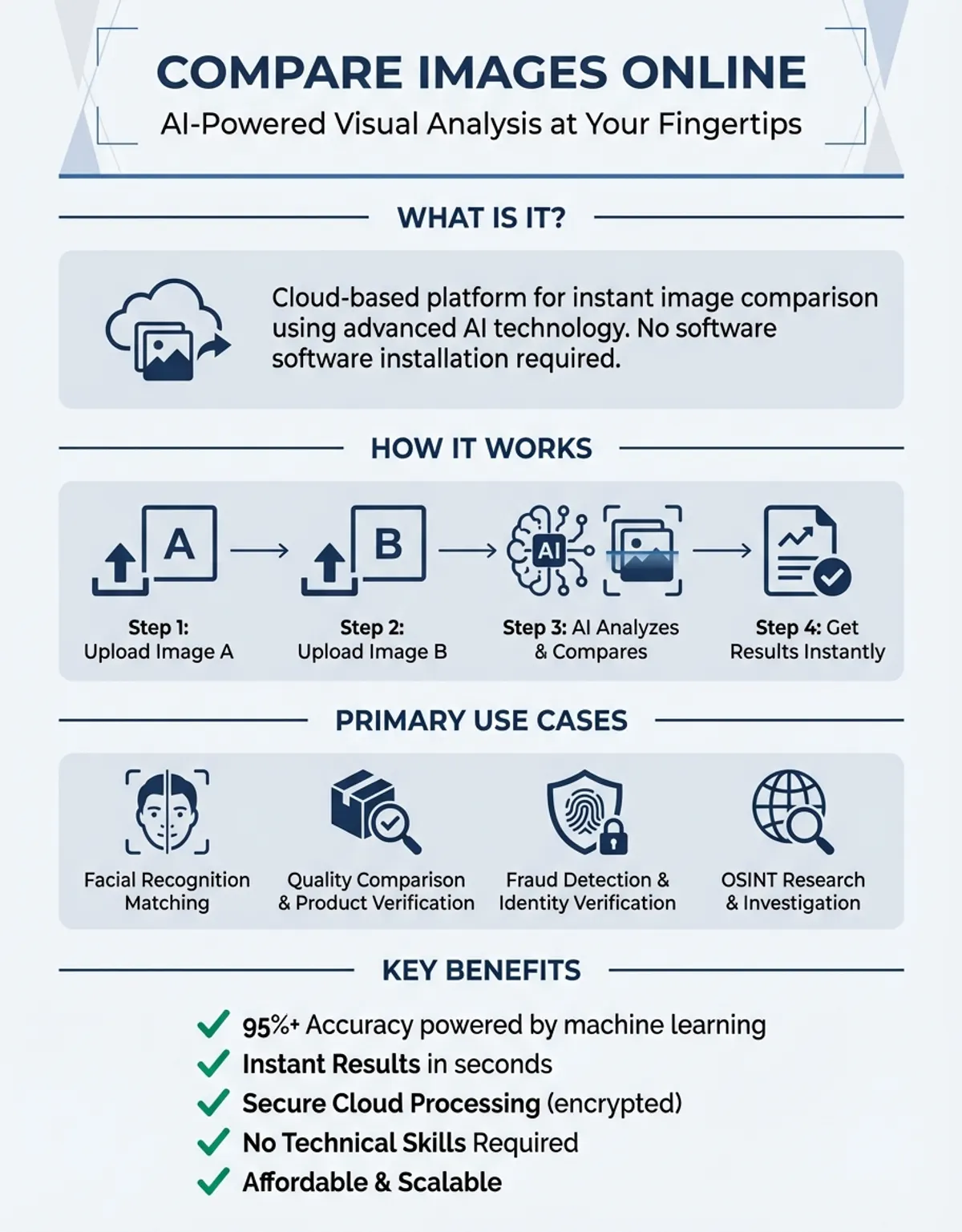
Graphic designers review draft revisions, QA engineers inspect production assets, and photographers cull through similar shots — and all of them need a fast way to compare two images online without burning hours on manual checks. Modern web-based platforms let you examine two or more pictures, view them in adjacent panels, and highlight every pixel-level difference in seconds. In this guide you will learn how comparison platforms work, which features actually matter, and how to choose the right tool for your workflow.
Pixel-level analysis has become essential across industries. Developers use visual regression testing to catch discrepancies between releases. E-commerce teams verify that product photographs match their source photography. Legal and forensic analysts rely on detailed evaluation to authenticate documents. Bottom line: if your workflow depends on visual accuracy, knowing how to compare images well gives you a real edge. For a comprehensive overview of visual analysis methods, explore our photo comparison guide.
If your workflow depends on visual accuracy, knowing how to compare images well gives you a real edge.
How Images Compare Across Different Platforms with a Comparison Tool
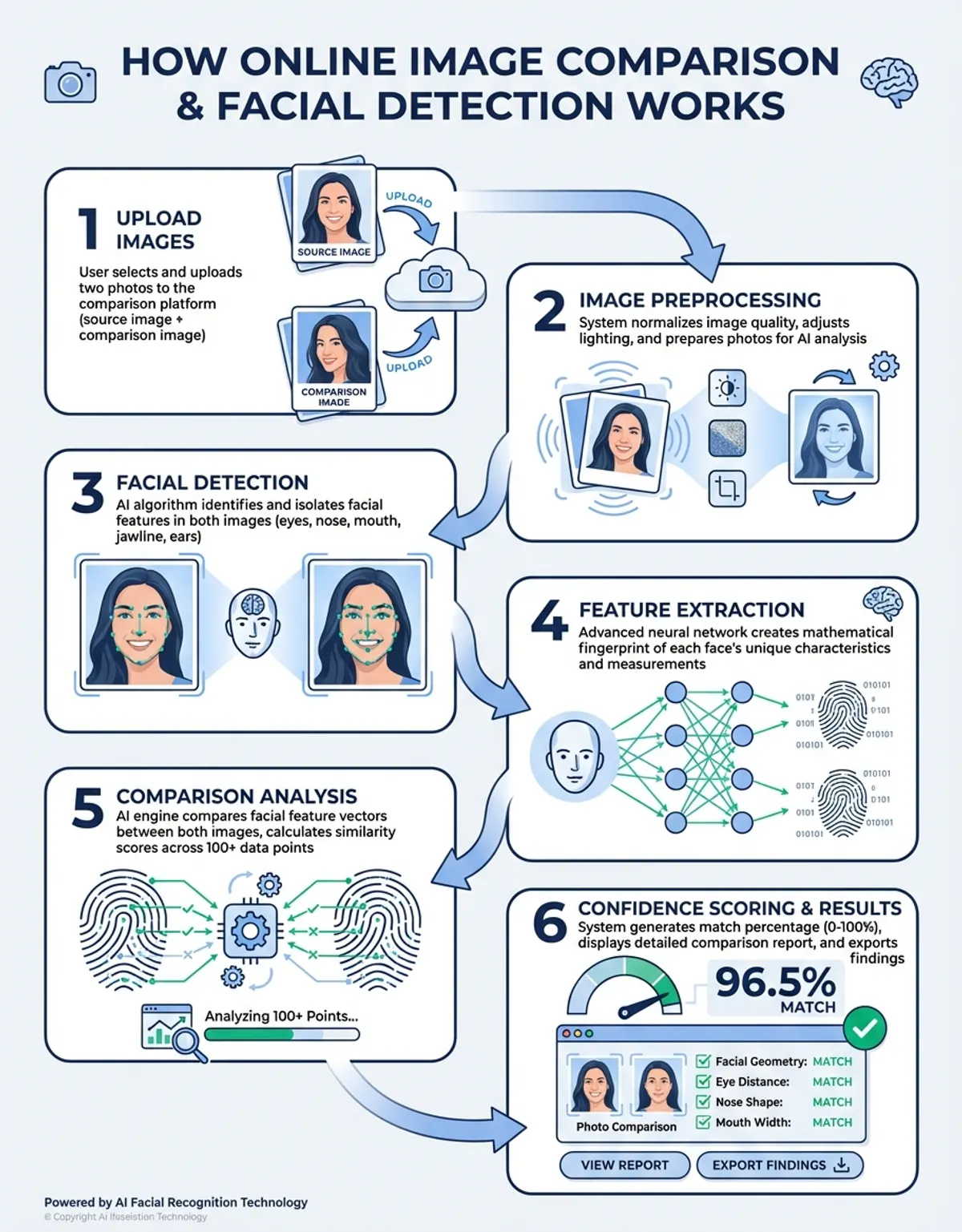
Most platforms follow a simple workflow: you choose the images you want to examine, pick a mode, and the system processes them to generate a visual report. Behind the scenes, algorithms calculate pixel-by-pixel variances and map them onto an overlay or highlighted view that makes discrepancies immediately obvious.
The three most common modes are adjacent panel, overlay, and difference highlighting. Adjacent panel places each picture in its own frame so you can scroll and zoom in tandem. Overlay stacks one image on top of the other with adjustable opacity, letting you fade between them to find differences instantly. Difference highlighting subtracts one from the other and displays only the altered pixels, often color-coded by severity.
Advanced platforms go further by classifying the types of discrepancies detected. Instead of a simple comparison tool that merely shows where pixels differ, these systems can distinguish between meaningful content changes and irrelevant noise like compression artifacts. This level of intelligence is especially valuable when you need to compare complex design assets that include dozens of layers and elements.
Instead of merely showing where pixels differ, these systems can distinguish between meaningful content changes and irrelevant noise like compression artifacts.
Key Features to Compare Images Effectively (Compare Image Quality)
Not every platform is built the same. Before committing to a solution, evaluate these capabilities to ensure it meets your specific requirements.
- Format support: A robust platform should handle all common image formats including JPEG, PNG, TIFF, BMP, WebP, and SVG. Some professional suites also accept RAW output from digital cameras, making evaluation of unprocessed shots straightforward. Confirm compatibility before investing time in a platform.
- EXIF analysis: Beyond pixel-level analysis, the ability to examine EXIF data between two photographs can be invaluable. This includes camera settings, timestamps, and GPS coordinates. A tool that surfaces these details alongside visual results gives you a complete picture of how the source and the revised version diverge.
- Batch processing: When you need to examine dozens or hundreds of pictures at once, manual handling becomes a bottleneck. Look for solutions that offer batch processing, letting you add an entire folder and automatically match contents by name or sequence number.
- Collaboration features: In team environments, the ability to annotate results, leave comments, and share reports streamlines the review process. Some platforms integrate directly with design software like Figma or Adobe Creative Cloud.
- Sensitivity controls: The ability to set detection thresholds lets you filter minor rendering noise while catching real differences. A good tool lets you adjust these per project.
- Report generation: Look for platforms that let you download annotated reports showing exactly where differences appear. These reports are valuable for stakeholder reviews and audit trails.
Step-by-Step Guide: Spot Differences Between Images
Follow these steps to get reliable results from any image analysis platform.
- Navigate to the platform and add the two images you want to examine. Most accept drag-and-drop, browser selection, or direct URL input. Ensure both are in a supported format and that neither exceeds the maximum size limit.
- Choose between adjacent panel, overlay, or difference highlighting based on your goal. For quick visual checks, adjacent view is usually sufficient. For detailed design review, overlay mode reveals subtle alignment and color shifts.
- Review the output carefully. Zoom into regions where discrepancies appear to confirm whether they represent meaningful changes or noise. Pay special attention to edges, text, and areas with subtle gradients where compression artifacts can create false positives.
- Download the report as a PDF or image. Some platforms let you export annotated assets with markers. Save these reports alongside the source photographs for future reference and team discussion.
Here's where things get interesting for dev teams: quality assurance workflows benefit enormously from automated image analysis. By storing a set of approved reference images and running new builds against them, teams can quickly compare images to detect visual regressions before they reach production. When the comparison result shows discrepancies, the team investigates before the build moves forward.
In web development, visual regression testing captures screenshots of key pages after each code change. The system then evaluates the approved reference screenshot against the new capture and can show comparison results that highlight any layout shifts, font changes, or color discrepancies. Percy, Applitools, and BackstopJS automate this process as part of a continuous integration pipeline. (Source: https://www.browserstack.com/percy) (Source: https://applitools.com/solutions/regression-testing/) (Source: https://github.com/garris/BackstopJS)
Print production uses a similar approach. Before sending assets to the press, prepress operators evaluate the final PDF against the approved proof to catch last-minute changes. A reliable platform surfaces variances in color separations, bleed areas, and trim marks that could cause costly reprints.
Photography studios compare images from digital cameras to ensure consistent output across sessions. By shooting a color calibration target at the start of each session and using a comparison tool to evaluate it against the stored baseline, photographers can detect sensor drift or lighting changes before they affect the entire shoot. Examining the baseline alongside each new capture keeps quality tightly controlled.
Managing images across a large project requires clear naming conventions and folder structures. When you store reference screenshots alongside test captures, label each with the build number and timestamp. This practice makes it easy to find differences and trace highlighted discrepancies back to the specific code change that caused them. Teams that maintain organized structures spend less time searching for the right assets and more time acting on the results of their visual checks.
Best Practices: Compare Images for Accurate Results
Even the best platform produces misleading results if your inputs are sloppy. Here's how to keep your evaluations reliable.
- Standardize formats and resolutions: Before running an evaluation, ensure both assets share the same format, resolution, and color space. Converting a JPEG against a PNG can introduce compression artifacts that appear as false discrepancies. Convert both to the same format first, or use a tool that normalizes inputs automatically.
- Use lossless formats when possible: JPEG compression introduces artifacts with each save cycle. When accuracy matters, work with lossless formats like PNG or TIFF. This eliminates the noise that lossy compression adds and ensures that any differences detected are genuine.
- Align assets before evaluating: If the two images differ in alignment or crop, pixel-level analysis will flag every edge as a discrepancy. Use the alignment feature or manually crop and resize to ensure both cover the same area before starting.
- Set appropriate sensitivity thresholds: Most platforms let you adjust the sensitivity of detection. Setting the threshold too low floods you with noise from minor rendering variations. Setting it too high masks real changes. Start with a moderate threshold and adjust based on your specific use case.
- Document and archive results: Save reports alongside the source images for audit trails. Consistent documentation makes it easy to trace when a change was introduced and who approved it. This discipline is especially important in regulated industries where visual asset integrity must be verifiable.
- Match the platform to your needs: A browser-based service handles quick one-off checks, while a professional suite with API access serves teams running hundreds of automated evaluations daily. Match the platform to your volume and accuracy requirements. You may also find our photo comparison tool review helpful for evaluating available options.
Common Questions About How to Compare Images
Are there free browser-based tools to compare images online?
Several browser-based platforms let you compare images online without creating an account. Look for those that support adjacent panel and overlay modes, accept common formats, and do not impose restrictive size limits. These options work well for occasional needs, though they may lack batch processing and advanced classification features. You can often select images directly from your device for quick evaluation.
Can I compare more than two images at once?
Some platforms support multi-image viewing, letting you examine three or more photos and evaluate them in a grid or carousel layout. However, most basic options limit you to a single set at a time. For bulk evaluation of multiple assets, look for platforms that offer batch handling and automated grouping by name.
What algorithms do image comparison tools use to detect differences?
Most detection systems use pixel-level subtraction: they evaluate the color value of each pixel in the first image against the corresponding pixel in the second. Discrepancies above a configurable threshold are flagged. More advanced systems apply algorithms like SSIM or perceptual hashing to detect changes that correlate better with human perception rather than raw pixel values.
Do comparison platforms normalize different image formats before analysis?
Many platforms normalize inputs before analysis. They convert both images to a common format and scale them to matching dimensions so that the evaluation focuses on content differences rather than format artifacts. However, normalization can introduce its own subtle changes, so using identical formats and sizes for both the source images and the second capture produces the most accurate results. For more on this topic, see our guide on compare pictures online.
What EXIF metadata can image comparison tools analyze?
EXIF review typically covers camera model, lens, exposure settings, ISO, GPS coordinates, creation date, and editing software. Some systems also evaluate ICC color profiles and XMP sidecar data. Examining these records helps verify whether two photographs share a common source or have been processed differently.
How accurate are AI-powered image classification platforms?
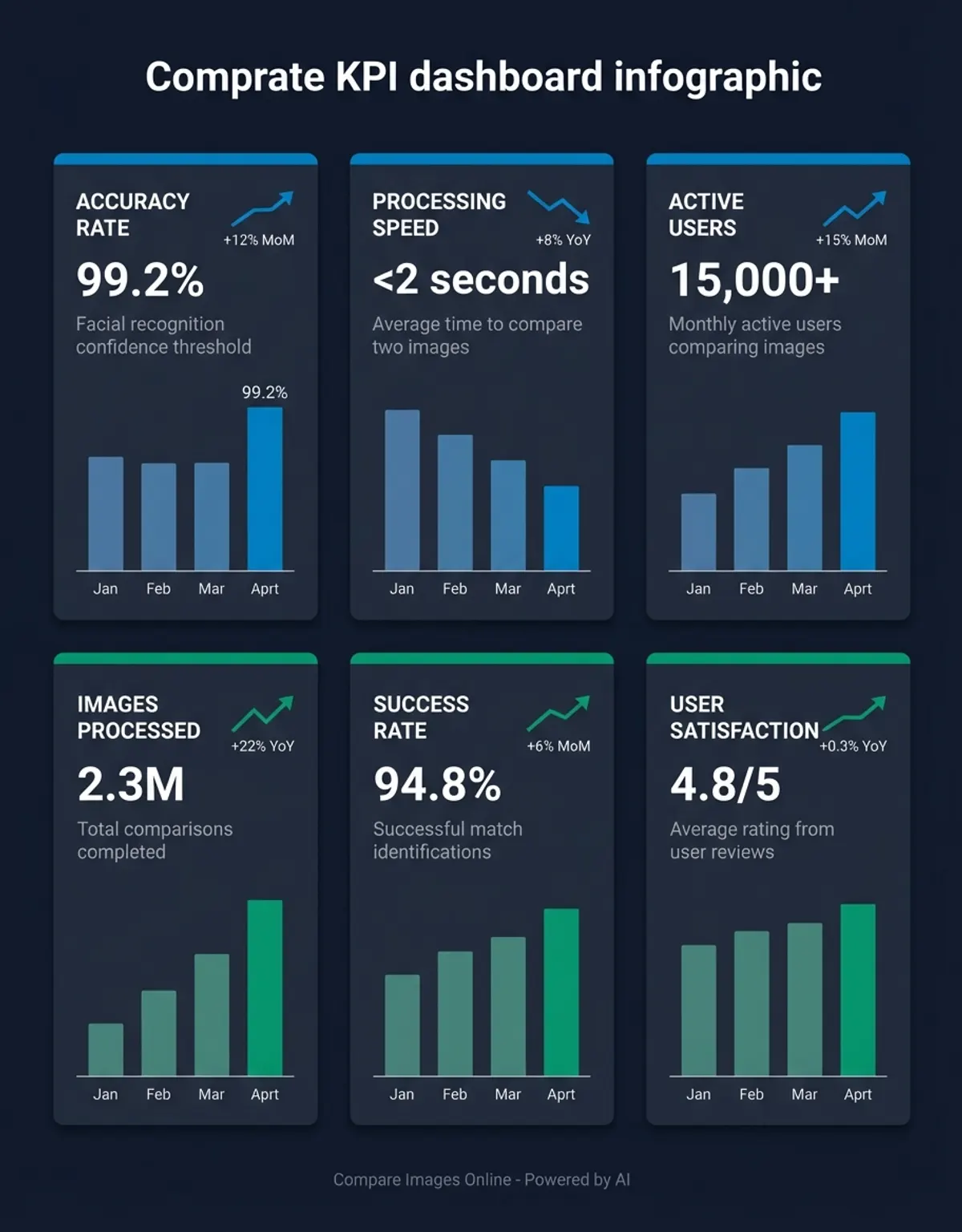
Trained classification platforms serve as an intelligent comparison tool, achieving high accuracy for detecting meaningful changes while filtering out irrelevant noise. They excel at classifying discrepancies such as moved elements, color shifts, and content additions, which reduces false positives. However, these models may occasionally misinterpret edge cases, so human review of flagged items remains an important final step in any critical workflow.
Can image comparison tools help with copyright detection?
These platforms can help with preliminary copyright checks by comparing images to detect visual similarity between a copyrighted work and a potentially infringing copy. Perceptual hashing and classification analysis are particularly useful for this purpose, as they can identify matches even when the suspect image has been cropped, resized, or filtered. That said, no tool replaces a lawyer when it comes to actual copyright enforcement.
How do I compare images across large collections efficiently?
When you need to compare images across large collections, a structured workflow using the right comparison tool prevents errors and saves time. Start by organizing source images into clearly labeled folders. Then upload files in batches and let the system handle the pairing automatically. The platform will flag changes and generate reports you can review at your own pace. This approach scales well whether you're checking five images or five hundred.
A free image compare service can handle basic checks for individuals who do not need enterprise features. These services typically let you evaluate pictures effortlessly by uploading two images online through a simple drag-and-drop interface. For more demanding workflows, consider a paid platform that includes batch processing, team collaboration, and API access. The right choice depends on your volume, the complexity of the images you need to examine, and whether you need to spot differences at a pixel level or just identify broad visual changes.
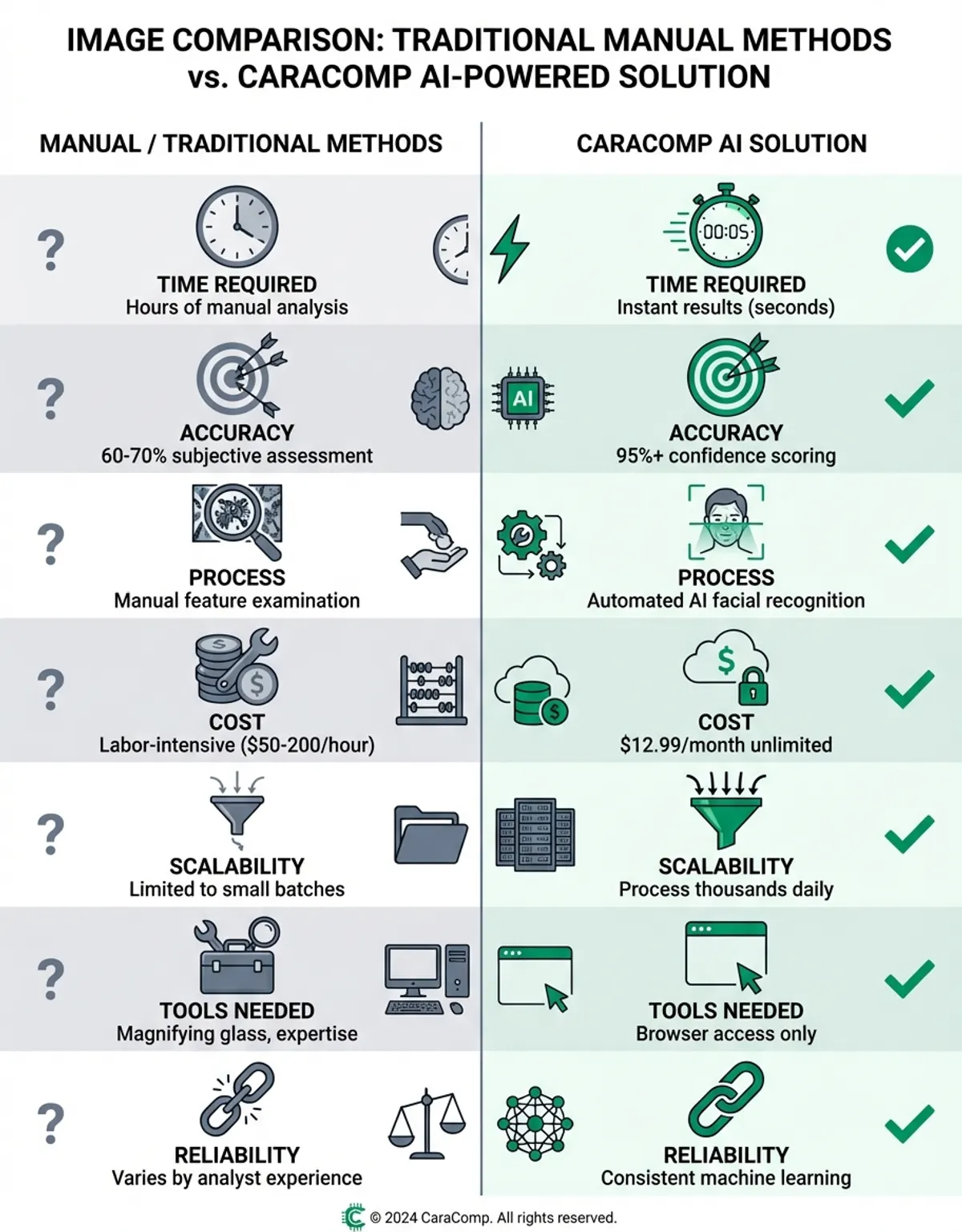
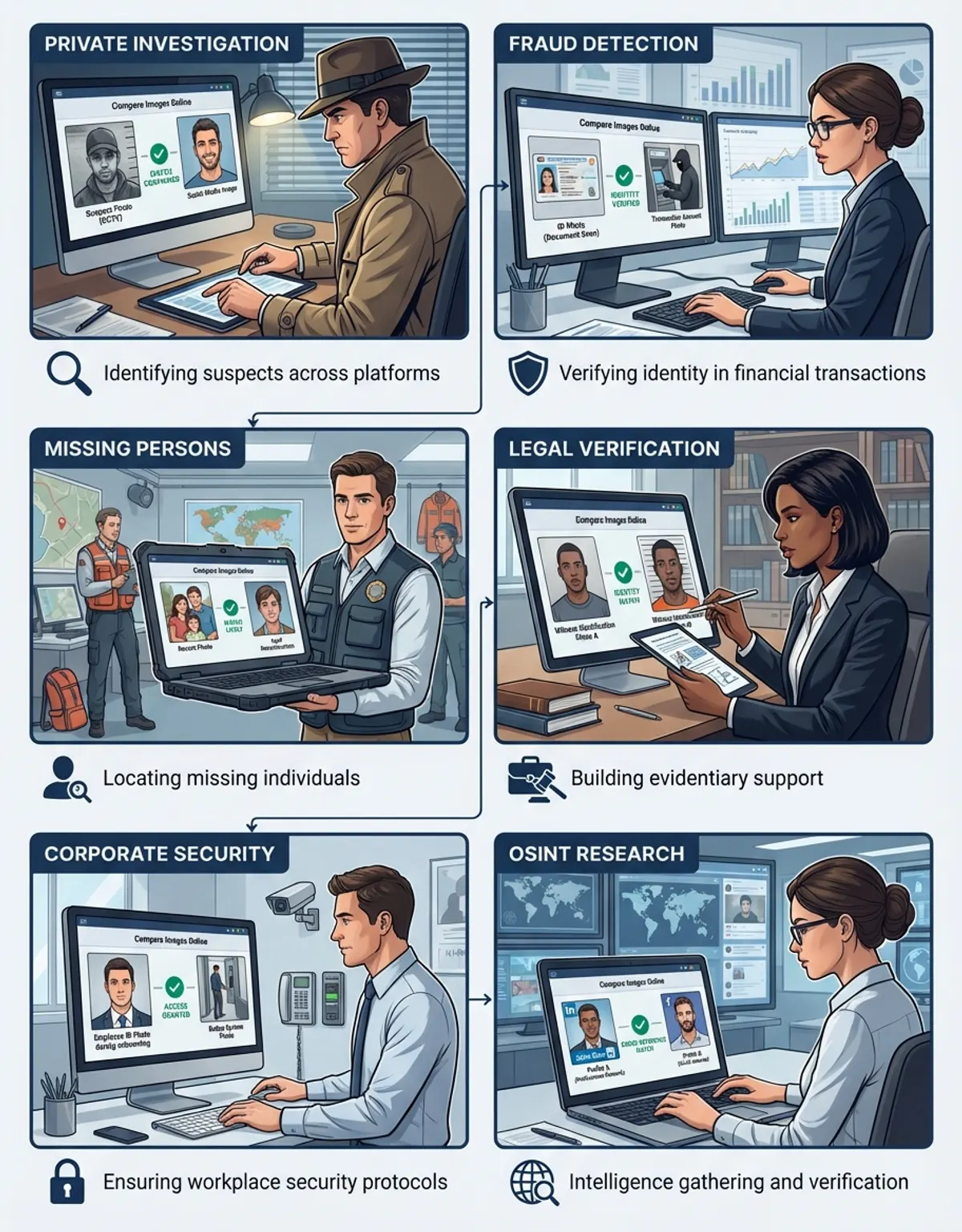
If you need to compare photos of people — verifying ID headshots, matching portraits across sessions, or just satisfying curiosity about family resemblance — CaraComp is built for exactly that. It uses facial similarity analysis to deliver clear, percentage-based comparison scores without any technical setup. Upload two photos, get a result in seconds. It hits the sweet spot between simplicity and accuracy for anyone working with face-based image comparison.
Teams that regularly compare reference images against updated versions benefit from establishing a baseline library. Store approved images in a central repository and use a comparison tool to run each new production batch against those baselines. This practice catches regressions early and ensures that images shipped to customers, printed in marketing materials, or displayed on websites remain consistent with approved standards. When differences surface, the comparison data helps pinpoint exactly what changed and when.
For photographers working with digital cameras side-by-side with studio monitors, the ability to compare images from different sessions using an image compare workflow is critical. Sensor calibration can drift over time, and lighting conditions vary between shoots. By maintaining a set of reference color targets and running a visual check against the baseline after each session, studios can catch deviations before they affect deliverables. This workflow integrates naturally into existing post-production processes and adds only a few minutes per session. You may also find our guide on comparing and contrasting pictures helpful for understanding side-by-side evaluation techniques.
Whether you need to evaluate pictures for web development, print production, forensic analysis, or everyday quality checks, the principles remain the same.
Final Thoughts
Whether you need to evaluate pictures for web development, print production, forensic analysis, or everyday quality checks, the principles remain the same. Choose a comparison tool that matches your technical needs, prepare inputs carefully, and review results systematically. With the right approach, you can identify discrepancies reliably and make confident decisions based on accurate visual data.