
Image Comparison Tool: Compare Images Fast with the Best Tools
A comprehensive guide to choosing and mastering the right image comparison software for pixel-perfect analysis, batch processing, and professional visual quality assurance.
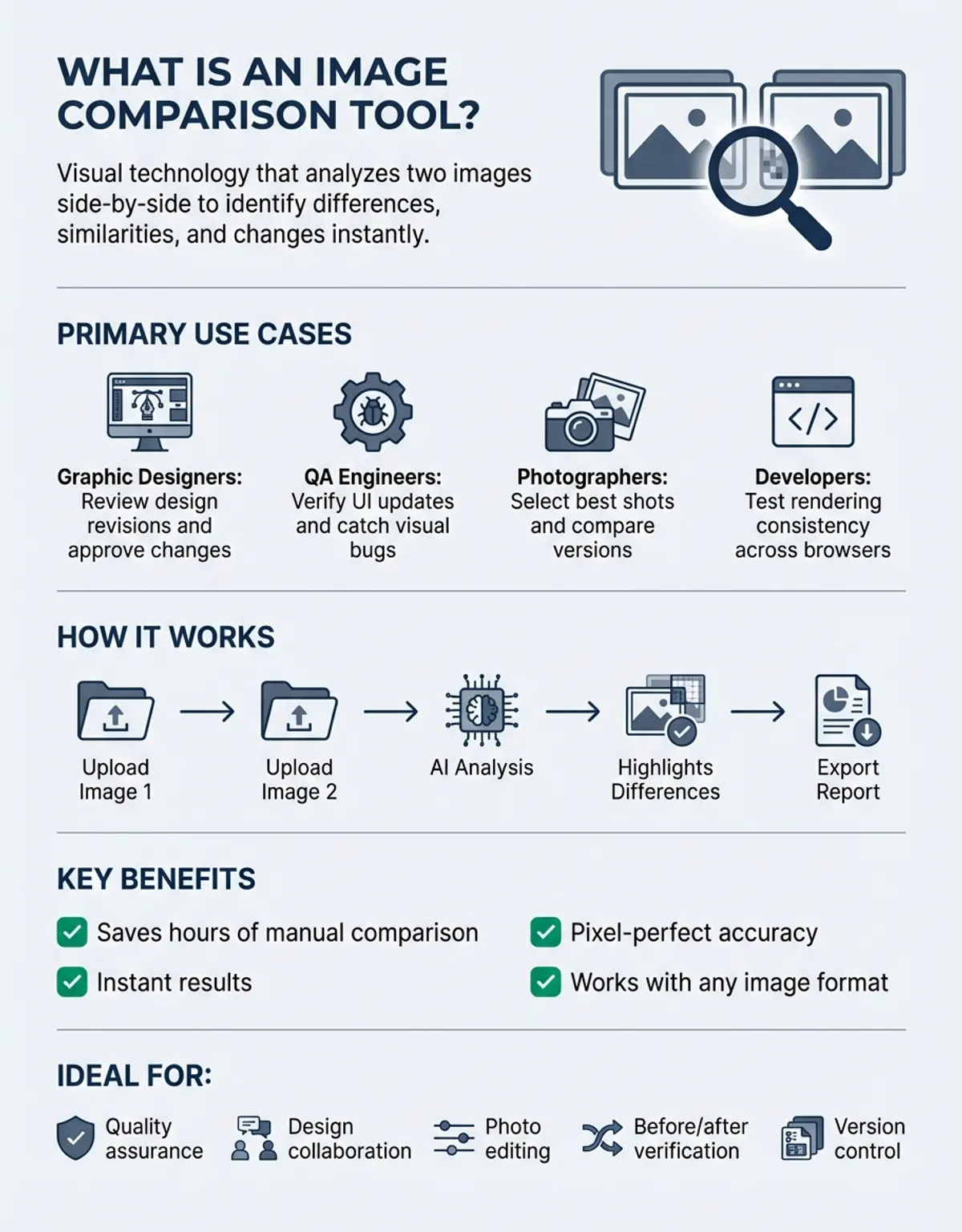
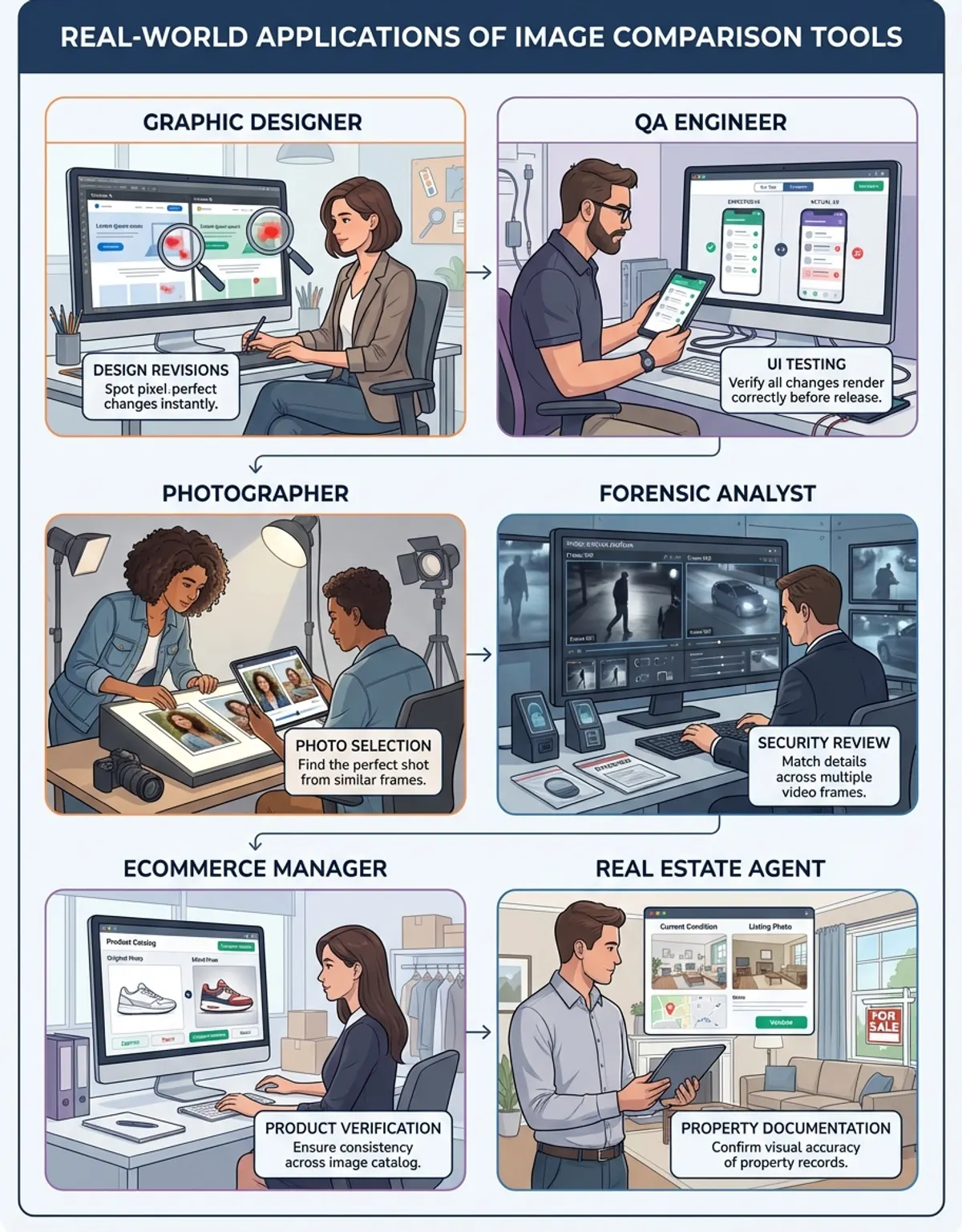
If you have ever squinted at two nearly identical images trying to spot the difference, you already know why image comparison tools exist. A reliable image comparison tool saves hours of manual inspection for designers reviewing revisions, QA engineers verifying UI changes, and photographers picking the best shot from a batch. Modern comparison software highlights every pixel-level shift automatically, catching changes that your eyes would miss entirely.
This guide breaks down how various options stack up, explains how to image compare effectively across different solutions, and walks you through proven techniques for getting accurate results from any platform you choose.
What Is an Image Comparison Tool and How Does It Image Compare
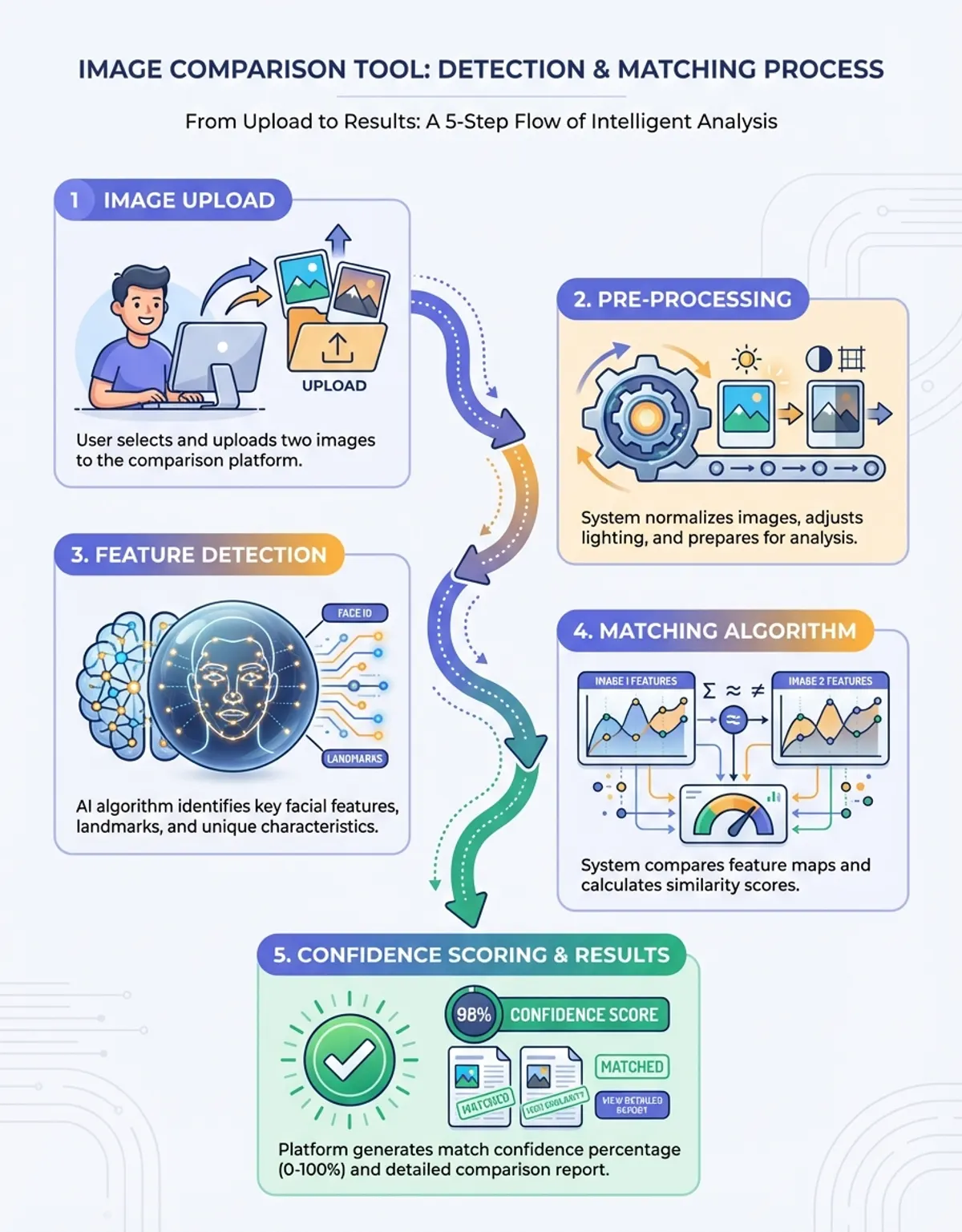
An image comparison tool is a program that analyzes two or more visuals and identifies the changes between them. The core function is straightforward: upload the original version alongside a modified one, and the program maps every visual change. Some go further by overlaying heatmaps, generating difference masks, or producing compare slider views that make even subtle shifts obvious.
Professionals across industries rely on these tools daily. Quality assurance teams in manufacturing compare reference images with production samples to catch defects before shipment. Web designers verify that a redesigned page matches the intended mockup. Medical imaging specialists visually compare diagnostic scans taken at different dates to track patient progress. Wherever human eyes might miss a small change, dedicated comparison software catches it consistently. For a comprehensive overview of visual comparison workflows, explore our photo comparison guide.
Wherever human eyes might miss a small change, dedicated comparison software catches it consistently.
Beyond accuracy, speed is a major factor. A photographer reviewing thousands of retouched visuals cannot afford to open each pair manually. Batch processing features in professional programs let users queue hundreds of image pairs and receive a comprehensive report highlighting every deviation from the original versions. The best tools also integrate with version control systems, allowing teams to automate regression checks every time an asset is updated. You may also find our guide on comparing two images helpful for understanding paired analysis techniques.
How to Compare Images Using Professional Image Compare Methods
Using a professional image comparison tool typically follows a simple workflow. First, you select the two images you want to analyze. Most platforms support drag-and-drop interfaces where you can drag your images directly into the comparison window. From there, the program aligns them automatically and applies its detection algorithms. If you prefer visual methods, our side by side photo comparison guide covers the best approaches.
Popular options like Butterfly Viewer provide a desktop environment with advanced overlay modes. You can toggle between side-by-side, onion-skin, and difference-highlight views. A browser-based option like Diffchecker requires no installation, making it ideal for quick checks when you are away from your primary workstation.
Slider Comparison, Vertical Comparison and Visual Diff Views
Most platforms show compare modes in three shapes. A slider comparison drags a divider across two aligned frames, so one replaces the other under your cursor. A vertical comparison stacks the frames instead, which suits tall screenshots and full-page captures. A visual diff drops the second frame on top of the first and paints only the pixels that moved. Choose the compare visualisation that answers your question: a compare slider for texture and detail, a stacked view for layout, and a difference mask when you need to find differences you cannot see at all.
For the most accurate results, ensure both visuals share the same resolution and color profile before running your analysis. If the dimensions differ, most programs will attempt to scale them, but automatic scaling can introduce artifacts that look like false changes. When you need to image compare high-resolution assets, start with matched dimensions and let the program focus solely on genuine content changes rather than scaling artifacts.
After running the comparison, review the output carefully. Most highlight changes with colored overlays or bounding boxes. Export the comparison as a PDF or annotated visual to share with your team. This documentation step is critical for accountability in regulated industries where you must prove that visual assets meet specifications.
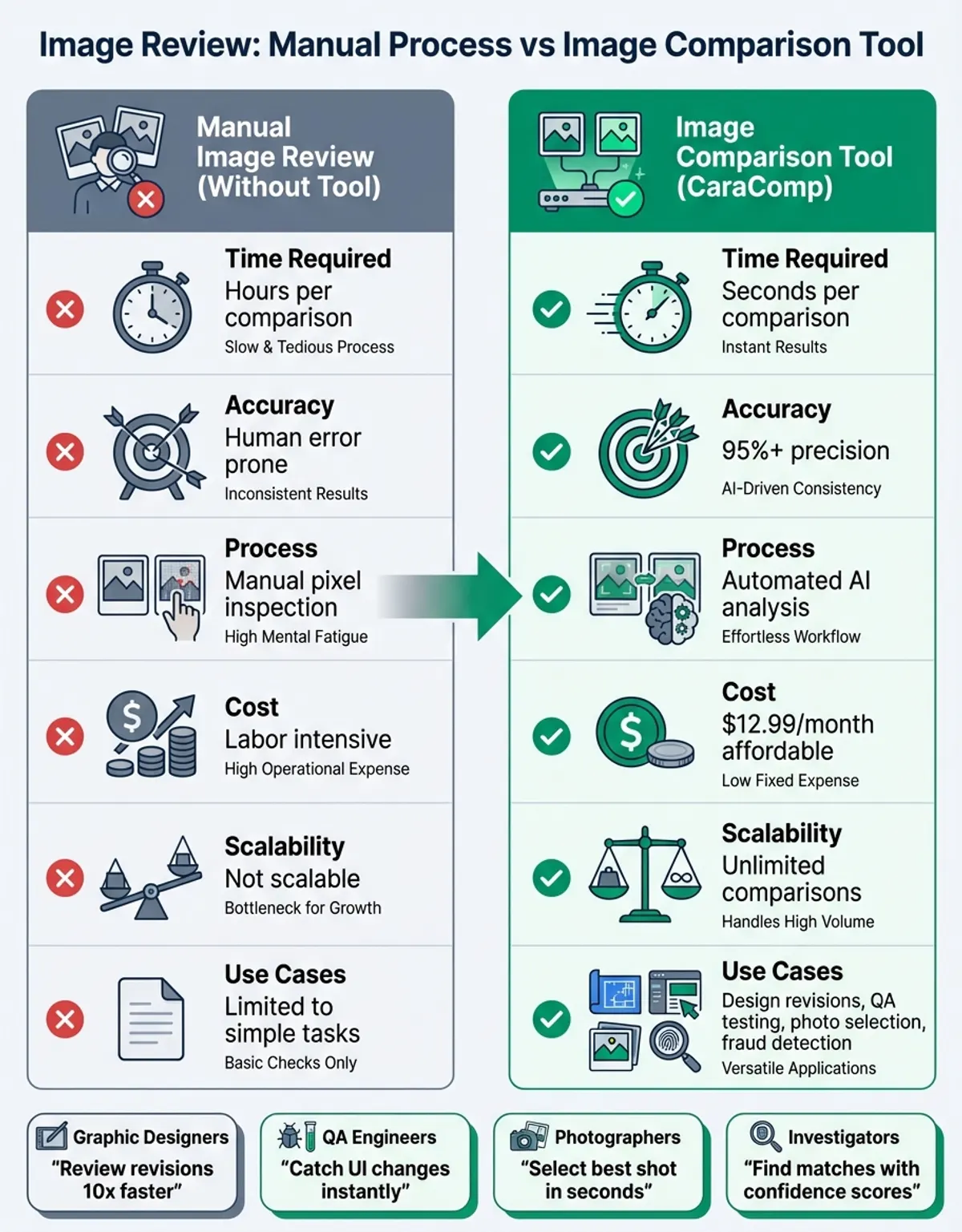
If you want to skip the setup hassle entirely, CaraComp offers a streamlined image comparison experience right in your browser. Upload two images, and the platform handles alignment, scoring, and visual difference highlighting automatically. It is a solid option for teams that need fast, reliable results without configuring thresholds or installing desktop software.
Key Differences Between Image Comparison Solutions and Software
Not all comparison approaches work the same way, and understanding the key differences helps you choose the right one. The first distinction is the comparison method. Pixel-level apps examine every individual pixel and flag any variation in color value. This approach is thorough but can be noisy when analyzing visuals saved in lossy formats like JPEG, where minor compression artifacts trigger thousands of false positives.
Perceptual comparison takes a smarter approach. It uses algorithms modeled on human vision to ignore imperceptible changes while flagging visually meaningful ones. This method works really well when you need to compare images that went through separate processing pipelines but should look identical to the viewer.
Perceptual comparison uses algorithms modeled on human vision to ignore imperceptible changes while flagging visually meaningful ones.
Another important factor is format support. Basic online options handle common formats like PNG, JPEG, and GIF. Professional solutions extend support to RAW camera formats, TIFF, PSD, and even vector formats. If your workflow involves specialized types, verify compatibility before committing to a platform.
Speed and scalability also separate entry-level from professional-grade options. When you need to run hundreds of comparisons overnight as part of an automated testing pipeline, the underlying architecture matters. Some platforms process each pair sequentially, while others distribute the workload across multiple threads or server nodes. For high-volume workflows like e-commerce catalog management, where thousands of product shots require validation after every retouching cycle, parallel processing capabilities determine whether your analysis finishes in minutes or hours.
Free vs Paid: Choosing the Right Image Comparison Services
The free tier of most comparison apps covers basic needs adequately. Browser-based options like Diffchecker let you upload a pair of visuals and view their changes without creating an account. These no-cost options work well for occasional use, one-off design reviews, or quick verifications where advanced features are unnecessary.
However, budget options come with limitations. Most cap the maximum size, restrict the number of analyses per day, and strip out batch processing entirely. If you regularly need to analyze large datasets, those constraints become bottlenecks quickly. Paid alternatives remove these limits and add features like automated reporting, API access for integration into CI/CD pipelines, and priority support from dedicated services teams.
For teams, the value proposition of paid alternatives becomes clearer. Enterprise-grade programs include user management, shared workspaces, version history, and audit trails. These features matter in industries like pharmaceutical packaging, where regulatory compliance demands documented proof that visual assets match approved masters: operators compare reference images against each print run and keep the record. When you make image quality comparisons at scale, investing in a professional-grade product is easily justified by the time savings and risk reduction it delivers.
Working with Different Files, File Formats, and How to Convert Data
An image comparison tool must handle a wide variety of formats, and understanding how your chosen approach processes each one prevents unexpected results. Lossless formats like PNG and TIFF preserve every pixel exactly as saved, making them ideal for pixel-perfect analysis. When you run your analysis on visuals stored in these formats, any detected change reflects a genuine modification.
Lossy formats like JPEG introduce compression artifacts each time a document is saved. Two visually identical JPEGs saved at separate quality levels will show numerous pixel-level changes that have nothing to do with actual content modifications. Quality-aware apps account for this by applying perceptual thresholds that filter out compression noise while preserving meaningful changes in the data.
RAW camera files present their own challenges. Since RAW data requires interpretation through a demosaicing algorithm, the same RAW file processed by separate programs can produce visually different results. Professional approaches handle this by applying consistent processing before analysis, ensuring you evaluate the actual image content rather than processing variations. If you are weighing two visuals point by point, our guide to compare and contrast images breaks down the workflow.
When your archive contains mixed formats, the ability to convert documents before comparison saves significant prep time. Look for approaches that support batch format conversion alongside their comparison features, so you can normalize your documents into a consistent format and convert them efficiently before running analysis across the entire dataset.
Cloud-Based vs Desktop Image Comparison Software
Cloud-based comparison platforms have gained significant traction because they eliminate installation requirements and enable collaboration across distributed teams. You simply upload your visuals through a web browser, and the comparison runs on remote servers. Results are accessible from any device, and sharing a comparison link with a colleague is as simple as copying a URL. Many cloud platforms also handle updates automatically.
The tradeoff? Performance and privacy. Uploading large assets to remote servers takes time, especially for high-resolution originals that can exceed 100 MB per visual. And if you are handling confidential imagery — unreleased product designs, sensitive medical scans — compliance restrictions may prohibit uploading assets to third-party servers altogether.
Desktop software for image comparison runs entirely on your local machine. A Windows application that can do side-by-side image comparisons processes assets at native speed without network latency. Programs like Butterfly Viewer offer advanced overlay modes, measurement features, and batch capabilities that many online platforms lack. The cloud approach appeals to distributed teams, while desktop programs deliver raw processing power.
Advanced Techniques for Accurate Image Comparison
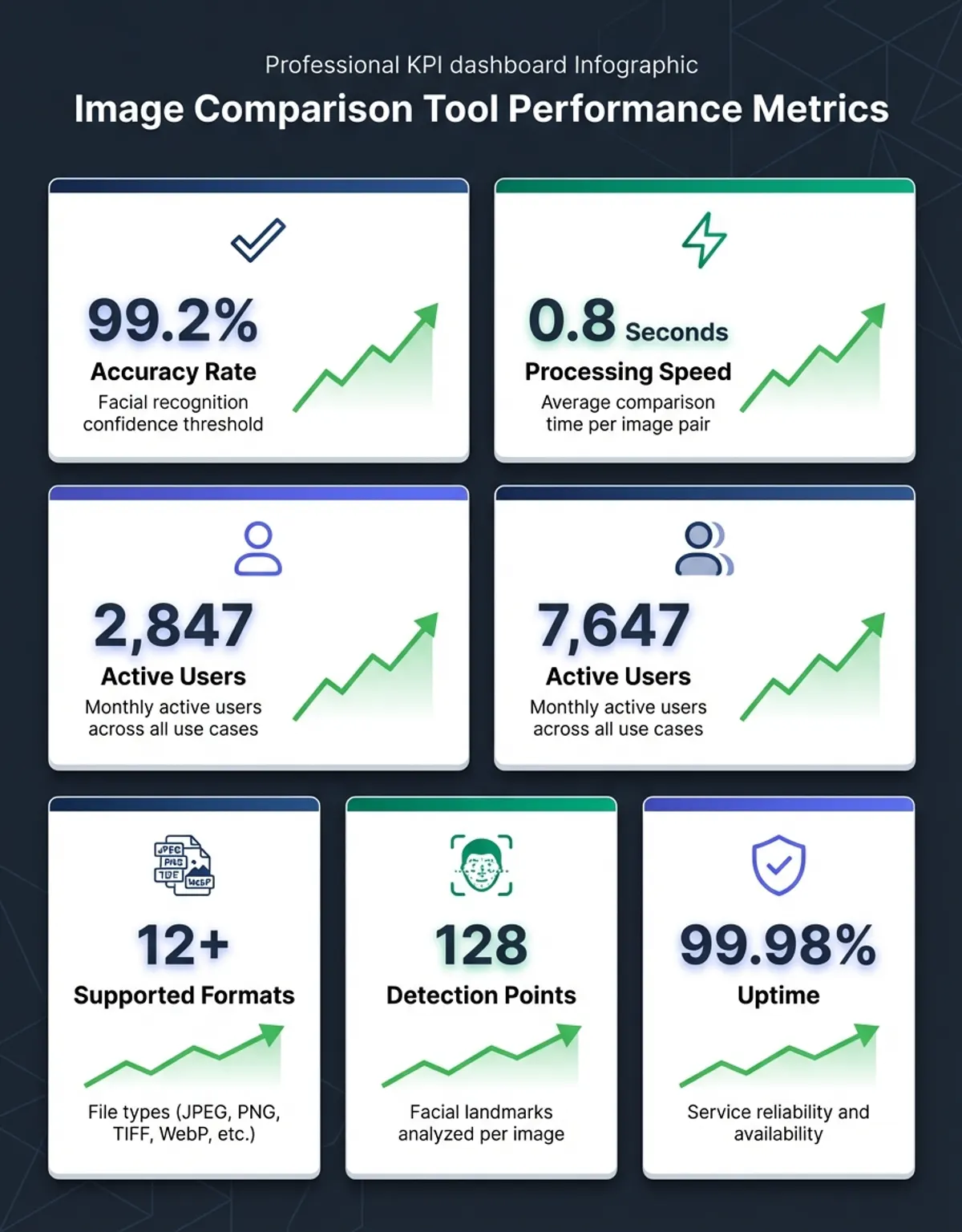
Getting precise results from your image comparison tool takes a bit more effort than just uploading two visuals and clicking analyze. Start by standardizing your input — make sure both images share the same color space, resolution, and format. Mismatches in these parameters can generate noise that obscures genuine content changes in the resulting data.
Threshold calibration is critical for reducing false positives. Most professional apps let you set sensitivity levels that define how much pixel variation counts as a real change. For print image quality assurance, a tight threshold catches color drift. For web design comparison, a looser threshold ignores anti-aliasing artifacts between browsers while still flagging layout shifts and missing elements.
Region-of-interest masking further refines your results. Instead of analyzing the entire visual, define specific areas you care about. This technique is invaluable when analyzing product photos with variable backgrounds or web pages with dynamic content like timestamps. By masking irrelevant regions, you focus the comparison on what actually matters to your original quality standards.
By masking irrelevant regions, you focus the comparison on what actually matters to your original quality standards.
Naming conventions also play a role in accurate batch analysis. When your project involves dozens of files across multiple revisions, consistent naming makes it easier for automated tools to match the correct pairs. Use a structured prefix system — such as "v1_homepage.png" and "v2_homepage.png" — so the comparison engine can automatically pair related files without manual selection. This small organizational step dramatically reduces errors during large-scale regression testing.
Compare Our Standard Test Scene and Log Every Camera Setting
Hardware testing works the same way. Agree on one repeatable layout — a colour chart, a resolution target and a textured object under constant lighting — and treat it as the house reference. Every time you compare our standard test scene, only one variable should change: the body, the lens, or the exposure. That discipline is what allows a reviewer to place two digital cameras side-by-side and argue that the difference on screen is real. Load both frames, drag your images into the panel, and let the software handle difference detection.
Keep the shooting notes with the files. When you compare our standard test scene again months later, the logged camera settings — aperture, shutter speed, ISO and white balance — tell you whether a change in the frame came from the sensor or from the conditions on the day. Without those camera settings, a difference map proves only that two files differ, never why.
Getting the Best Original Results from Your Image Comparison Tool
Maximizing the value of any comparison approach starts with organizing your source assets. Create a clear naming convention that links each image pair, such as including version numbers or dates. This practice prevents mix-ups when running batch comparisons across hundreds of assets and makes it easy to trace any flagged change back to its source.
Calibrate your display. The comparison program may detect subtle color shifts that are invisible on an uncalibrated monitor. Zooming both panes to 100 percent is the only honest way to judge how two images compare at full size. If you are making decisions based on visual review of comparison results, invest in monitor calibration to ensure what you see matches the actual image content. This step is especially important for photographers and print professionals who rely on color accuracy.
Document your comparison settings. When you find a combination of threshold, color space, and masking that works reliably for a specific use case, save it as a preset. This ensures consistency across sessions and makes it easy to onboard new team members who need to produce comparable results. Professional programs often include preset management as a built-in feature precisely because reproducibility matters in professional workflows.
Integration with existing tools is the final piece. Many comparison platforms offer APIs and plugins that connect with design applications, project management systems, and CI/CD pipelines. By embedding your comparison checks into the processes you already follow, you eliminate the risk of skipping a review step. Automated comparison runs every time an asset is pushed to your repository, catching regressions before they reach production. This level of automation transforms visual quality assurance from a manual bottleneck into a seamless, continuous process that scales with your team.
| Feature | Online Apps | Desktop Programs | AI-Powered Platforms |
|---|---|---|---|
| Speed | Fast (depends on upload) | Very fast (local processing) | Moderate (model inference) |
| Size Limit | Usually 10-50 MB | Unlimited (RAM-dependent) | Varies by provider |
| Comparison Accuracy | Good (pixel-level) | Excellent (configurable) | Superior (perceptual) |
| Compare Visualisation | Slider comparison and split panes | Show compare slider, onion-skin and vertical comparison modes | Heat-map visual diff overlays |
| Difference Detection | Fixed thresholds only | Configurable thresholds and masking | Perceptual scoring over pixel data |
| Batch Processing | Limited or unavailable | Full support | Full support |
| Cost | Freemium | One-time or subscription | Premium subscription |
| Offline Access | Not available | Full offline support | Some offer offline mode |
| Collaboration | Built-in sharing links | Manual export required | Team dashboards |
Frequently Asked Questions
What is the best free image comparison tool available online?
Several free image comparison apps deliver reliable results for casual use. Diffchecker offers browser-based comparison with no signup required. For pixel-level analysis, online options like ImgOnline and TheImageKit provide side-by-side difference views. The best choice depends on your specific needs: if you primarily need to compare images quickly without installing a program, browser-based options work well. For more demanding workflows, most paid alternatives offer trials that let you evaluate advanced features before committing.
How do I compare two images side by side for differences?
Upload both visuals to your chosen comparison platform. Most automatically align the pair and display them in a split-screen or slider view, which makes it easy to read how the two images compare. Toggle the difference overlay to find differences in the changed areas. The same routine applies when you place frames from two digital cameras side-by-side to judge noise or detail. For the most accurate results, ensure both have identical dimensions. If you need a quick check without a dedicated app, you can visually compare them using your operating system's built-in image viewer by opening both and switching between windows, though dedicated apps are far more precise.
Can image comparison tools detect subtle pixel-level differences?
Yes — and honestly, the sensitivity of modern tools is impressive. Professional comparison apps detect changes down to single-pixel color value variations. Most display these as highlighted overlays or generate a difference map showing exactly where variations occur. Sensitivity settings let you filter out noise from compression artifacts while preserving meaningful changes. This capability is essential for quality assurance in printing, manufacturing, and medical imaging where even minor deviations from the original matter.
What file formats do most image comparison tools support?
Standard support includes PNG, JPEG, GIF, BMP, and TIFF. Professional desktop programs add RAW camera formats (CR2, NEF, ARW), PSD, SVG, and WebP. Online platforms typically support the most common web formats. Before choosing an app, verify it handles your specific types. If you work with proprietary formats, look for options that accept plugins or let you convert assets before comparison.
Is there a Windows application for professional image comparison?
Yes. Butterfly Viewer is an open-source Windows application that can do side-by-side image comparisons with advanced overlay modes, including a compare slider you drag across the frame. Beyond Compare is a paid option that handles both document and image comparison with batch support. For developers, WinMerge includes image comparison alongside code-diffing capabilities. Each of these applications processes visuals locally, offering faster performance and better privacy than online alternatives.
How does AI-powered image comparison differ from traditional tools?
Traditional apps compare pixels or color values mathematically. AI-powered alternatives use neural networks trained on human perception data to evaluate changes the way people do. This means AI-driven products can identify meaningful visual changes while ignoring irrelevant variations like slight white-balance shifts, which helps when the two frames were captured with different camera settings. They excel at analyzing visuals where the content is semantically similar but technically different, such as photos of the same scene taken from slightly different angles.
Can I compare images stored in the cloud without downloading them?
Several online comparison platforms integrate directly with storage providers like Google Drive, Dropbox, and AWS S3. These integrations let you select visuals from your cloud storage and run comparisons without downloading anything to your local machine. Results usually open in a slider comparison or a visual diff view in the same browser tab, so nothing needs to leave the platform. This approach saves bandwidth and keeps your assets within your existing infrastructure. For teams already using online platforms for asset management, this integration eliminates redundant downloads and simplifies the comparison workflow.
Choosing Your Ideal Image Comparison Tool
The right image comparison tool depends on your specific workflow, volume, and accuracy requirements. Browser-based options like Diffchecker handle quick checks without installation. Desktop programs like Butterfly Viewer and Beyond Compare deliver raw processing power for professional-grade analysis. AI-powered platforms push accuracy further by evaluating changes through perceptual models trained on human vision.
Whatever your use case — from design QA and manufacturing inspection to medical imaging and automated regression testing — the tools covered in this guide give you everything you need to catch every pixel-level change with confidence. Start with a free option to understand your baseline needs, then scale up as your workflow demands grow.